
Collecting subscribers somewhere else, or from before you used Automailer? Import them so they start getting your Automailer emails too.
How to Import Subscribers
Step 1: Turn on Automailer if you haven't already.
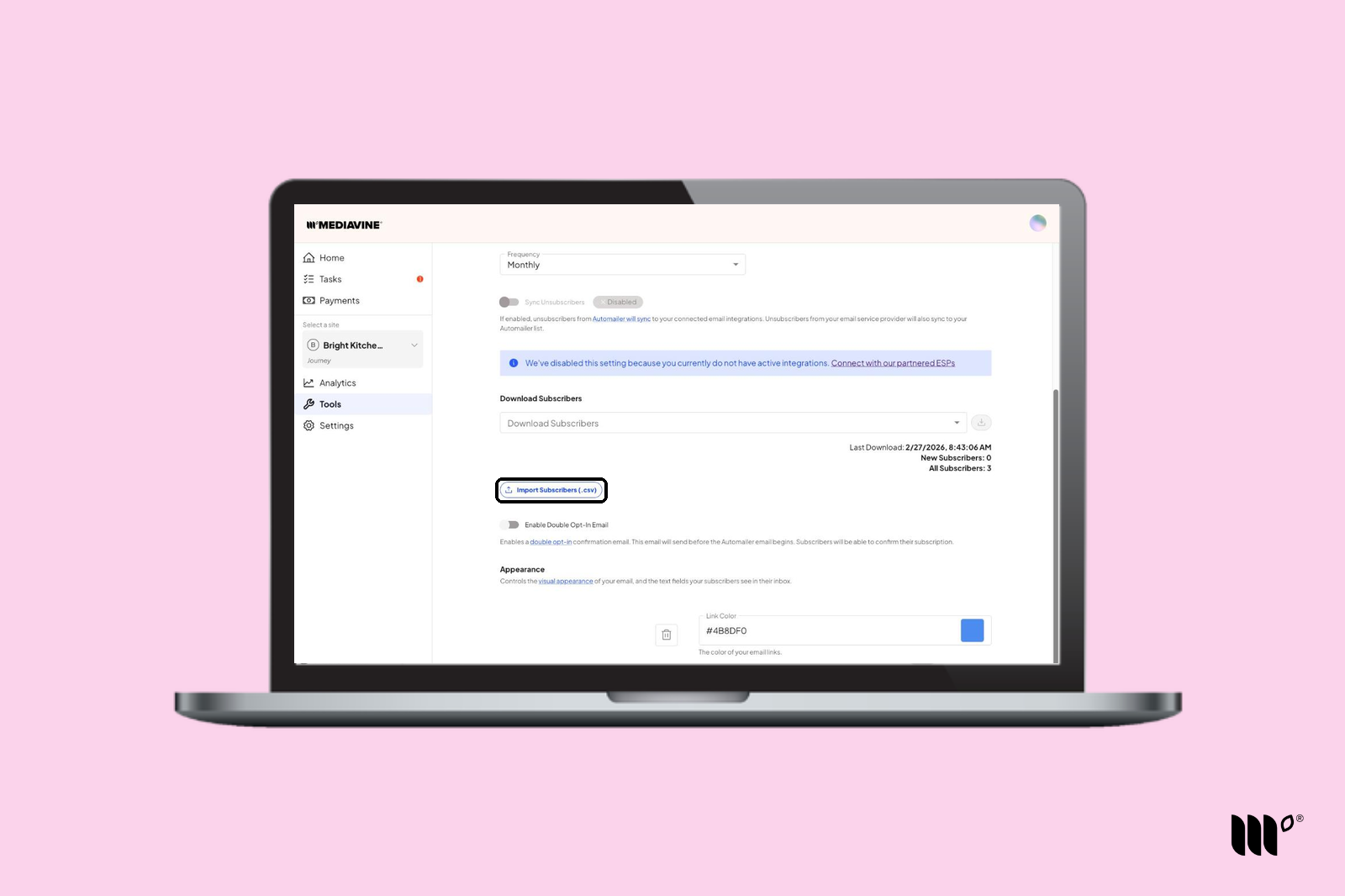
Step 2: Go to Tools > Automailer and click Import Subscribers (.csv).
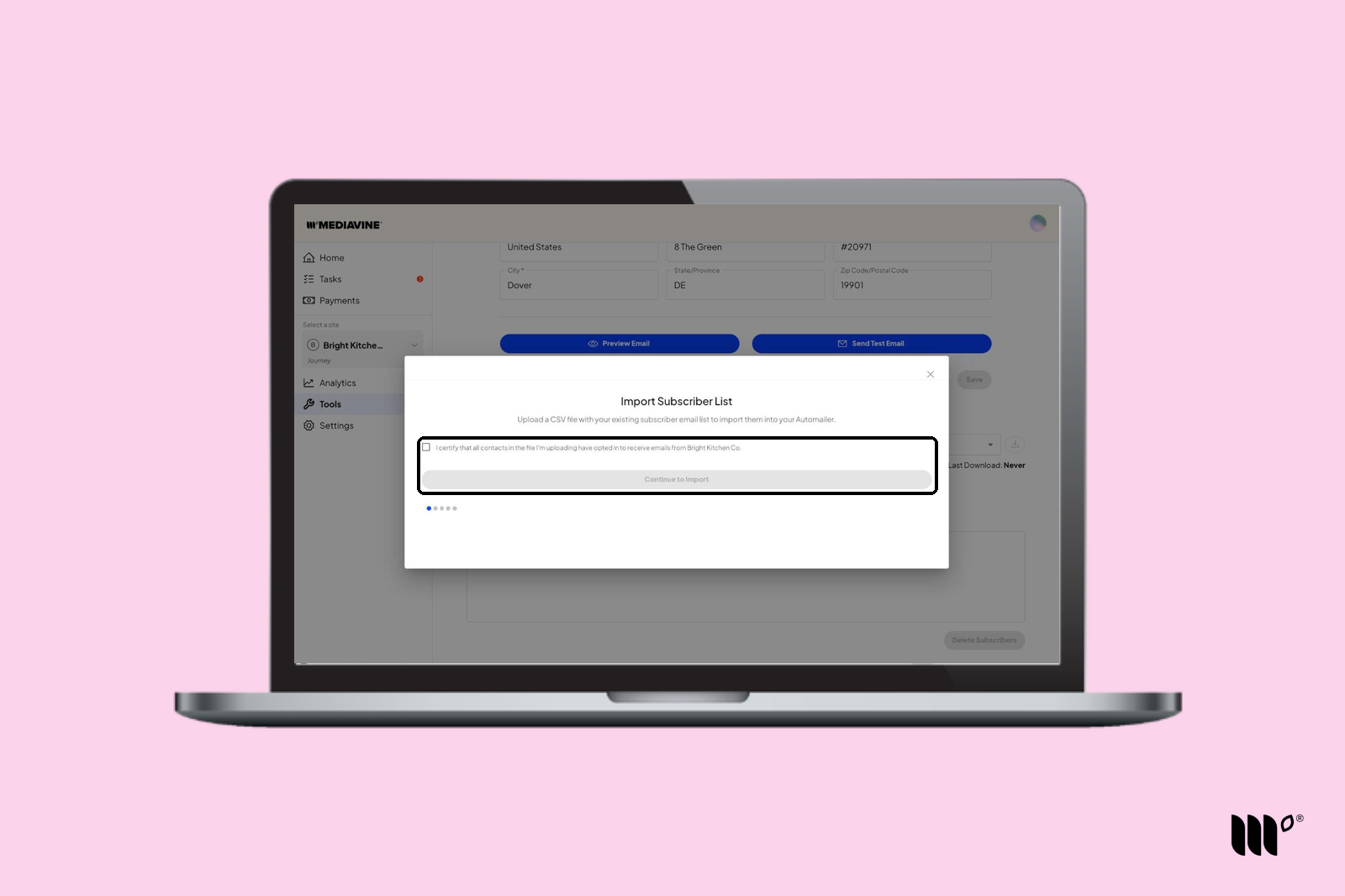
Step 3: Check the box to confirm you have consent to email these subscribers, then click Continue to Import.
Step 4: Click Browse to upload your CSV, or drag the file into the importer.
Your CSV file can't be larger than 5MB. If it's larger, split it into multiple files of 5MB or less and upload them one at a time.
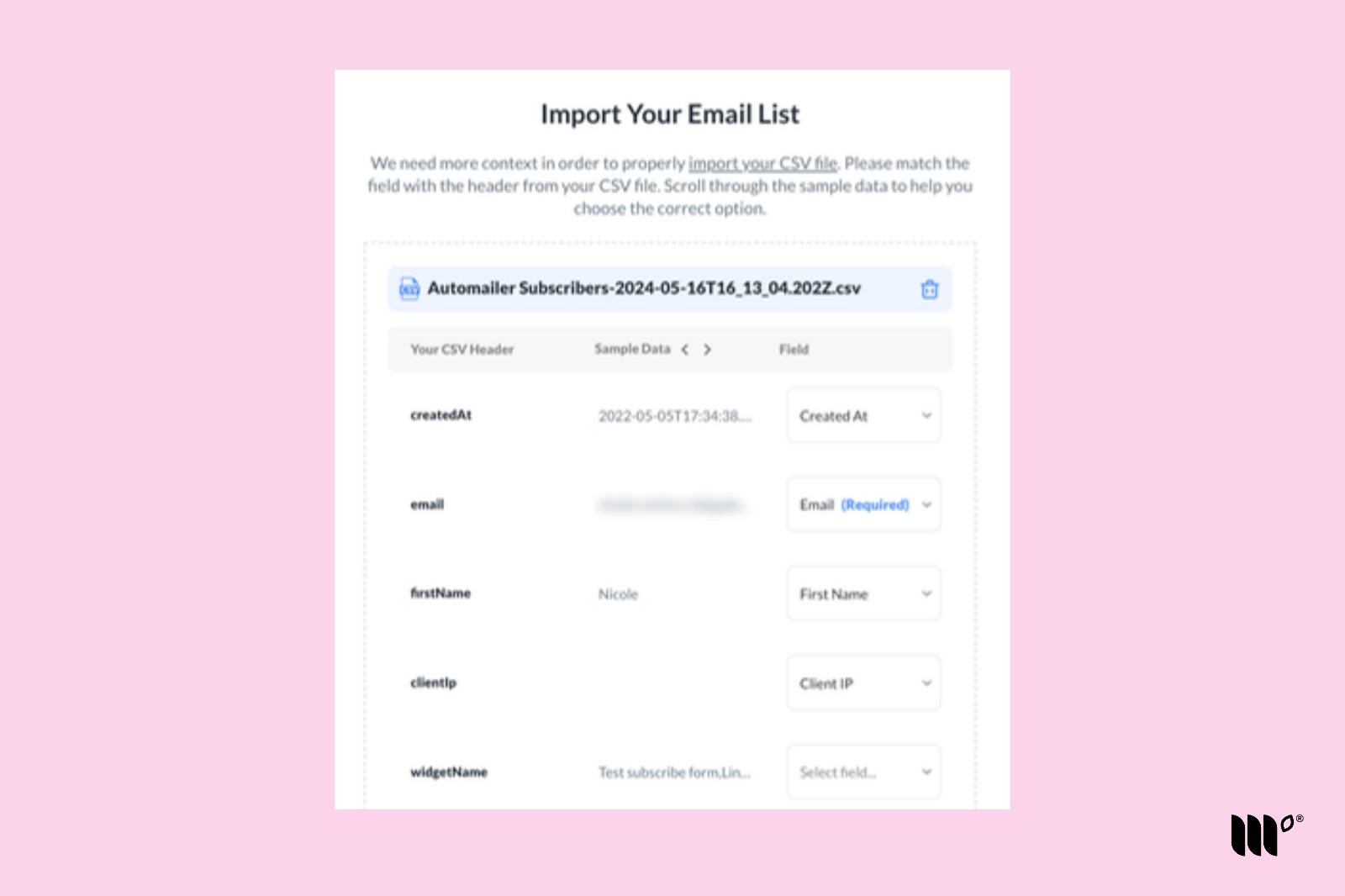
Step 5: Match each header from your CSV (the labels in its top row) to the right field, then click Import CSV List.
That's it! Your subscribers are on their way to your Automailer List.
Frequently Asked Questions
Will Automailer emails send after I import?
Yes! Imported subscribers are batched into your Automailer List. Once batching is complete, they'll start getting your Automailer emails.
Will I have a history of what I've uploaded?
Yes. Your import history appears after you import a list and each time you open the importer.
What happens if a subscriber in my CSV doesn't have a country code or IP address?
They're still imported, but they'll get a double opt-in email to confirm their subscription first. Once they confirm, they'll start getting Automailer emails.