
Automailer sends your subscribers a regular digest of your posts automatically. Setting it up for the first time? Follow Getting Started with Automailer.
To find your settings, go to Tools > Automailer in your Publisher Dashboard. Be sure to click Save after making changes.
General
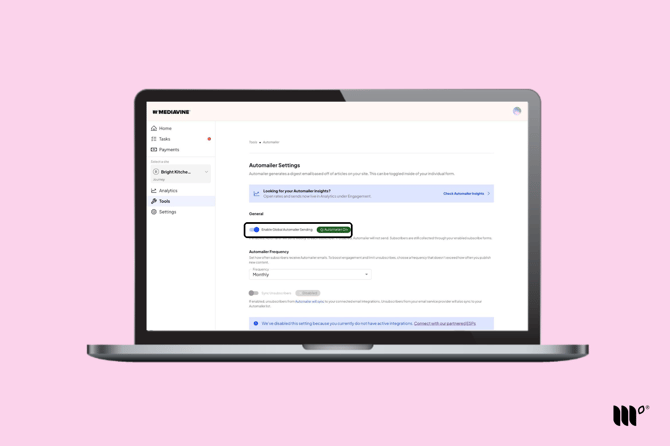
Enable Global Automailer Sending is your on/off switch for Automailer. When it's on, Automailer emails are sent to everyone on your Automailer List. Turn it off to stop sending.
Automailer Frequency sets how often Automailer emails are sent.
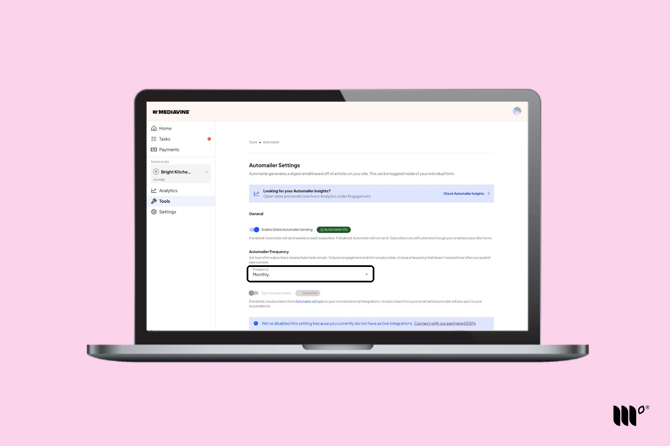
By default, it's weekly. You can also choose:
- Biweekly (one email every two weeks)
- Monthly (one email every four weeks)
- Every 3 days
- Every other day
- Daily
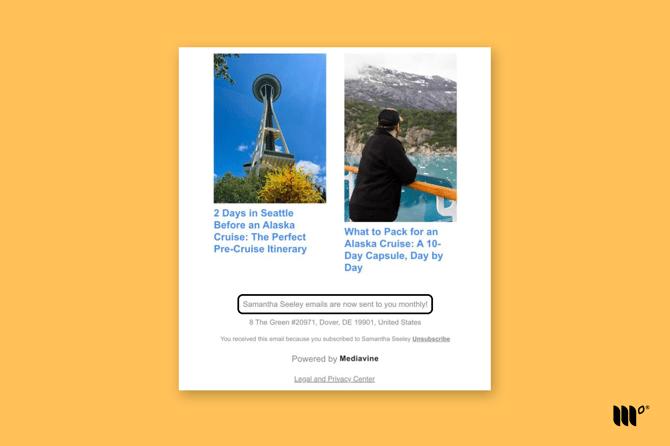
When you change your frequency, a notice about the change is added to the bottom of the next Automailer email your subscribers receive.
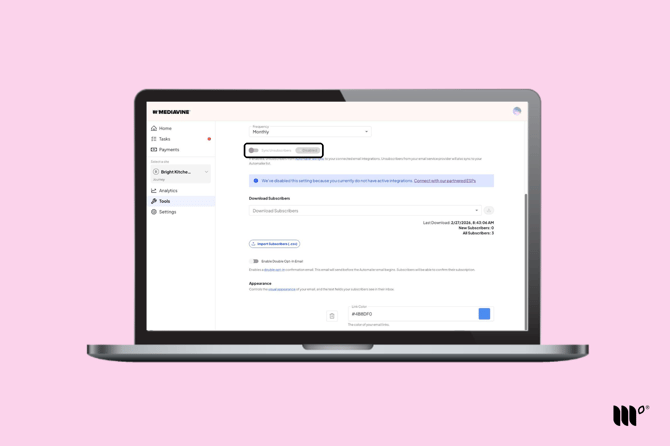
Sync Unsubscribers keeps your Automailer List and your Email Service Provider's list in sync. It's available once you've connected a supported Email Service Provider.
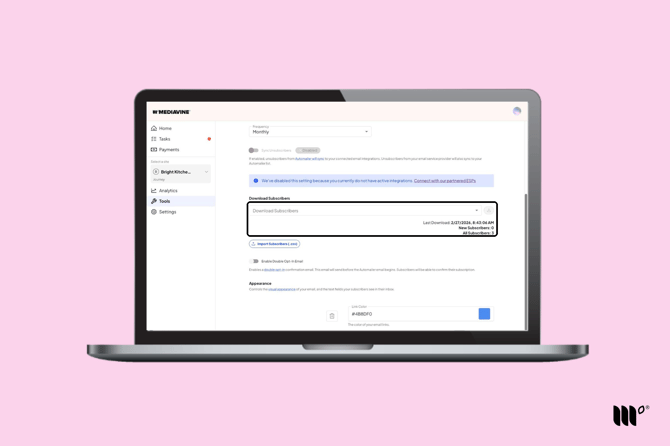
Download Subscribers downloads your Automailer List as a CSV. Choose New Subscribers (since your last download) or All Subscribers.
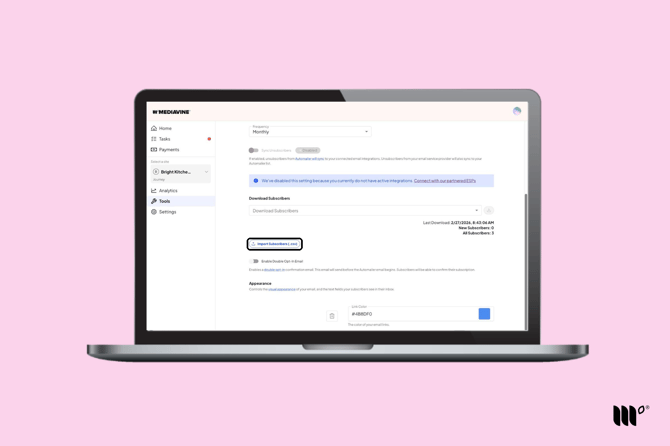
Import Subscribers (.csv) lets you upload a CSV of subscribers so they start getting Automailer emails.
Appearance
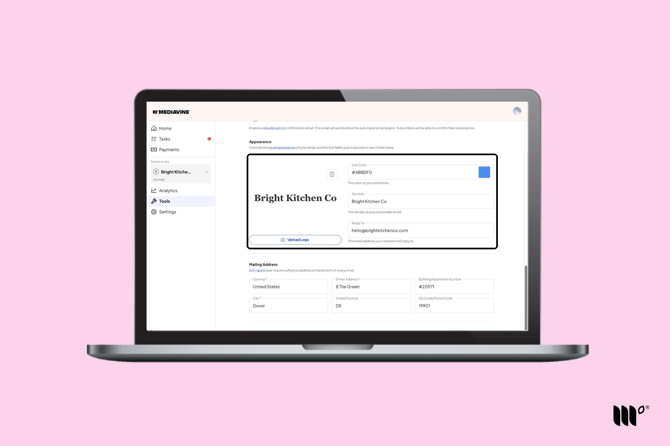
Under Appearance, you can:
- Upload your site's logo
- Choose a Link Color that matches your branding
- Set who your emails are sent as (Send As)
- Add the email address replies go to (Reply To)
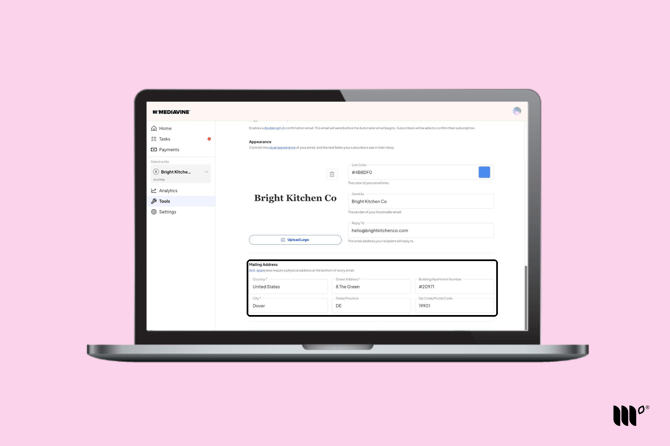
Mailing Address
A physical mailing address is required for Automailer to send. The FTC's CAN-SPAM Act requires one on every marketing email, including Automailer.
Work from home or don't have an office? If you'd rather not use your home address, these Email Service Provider guides cover some alternatives:
- Mailchimp: Alternative Physical Address Ideas
- Kit: Alternatives for Your Physical Address
- MailerLite: Anti-Spam Policy
- Flodesk: Why Do I Need a Mailing Address in My Emails?
- ActiveCampaign: Add a Physical Address to Your Account
- AWeber: What Is the CAN-SPAM Act?
- GetResponse: How to Change the Postal Address in the Message Footer
Preview Email
Click Preview Email to see what your Automailer emails will look like. Then click Save.
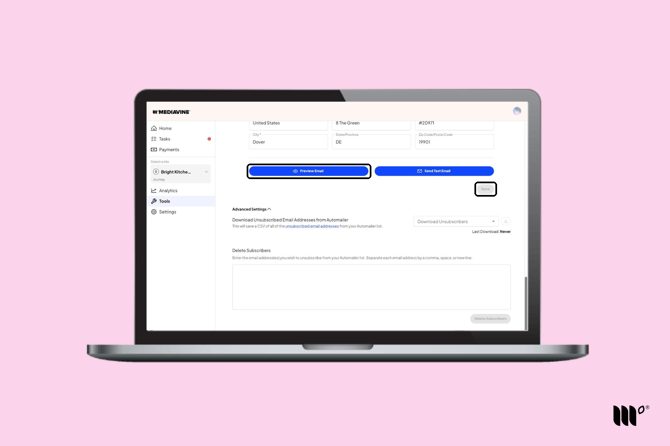
Why am I seeing a notice on my preview?
If you see a yellow notice on your preview, we're still getting to know your site and need more information before we can show an accurate preview. This can happen if you recently turned on Automailer or there's been no new content on your site in the last 24 hours (in which case the preview uses general content from your site).
Advanced Settings
Click Advanced Settings to expand it.
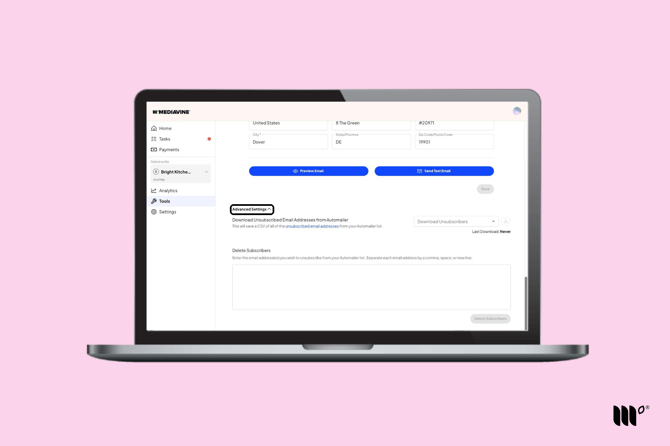
- Download Unsubscribed Email Addresses from Automailer downloads a CSV of everyone who has unsubscribed.
- Delete Subscribers removes up to 100 email addresses from your Automailer List at a time.
See How to Remove Subscribers from Automailer.