
Everyone who subscribes through your Subscribe Forms, Print Pass or Exclusive Content* is saved to a subscriber list you can download as a CSV. You can then upload the CSV to your Email Service Provider.
Want to skip the download?
Connect your Email Service Provider and add Form Actions to send new subscribers there automatically. ESPs without a direct integration option can use Zapier to automate moving subscribers.
How to Download Your Subscribers
Step 1: Go to Tools > Subscribe Forms > Settings and click Export Subscribers.
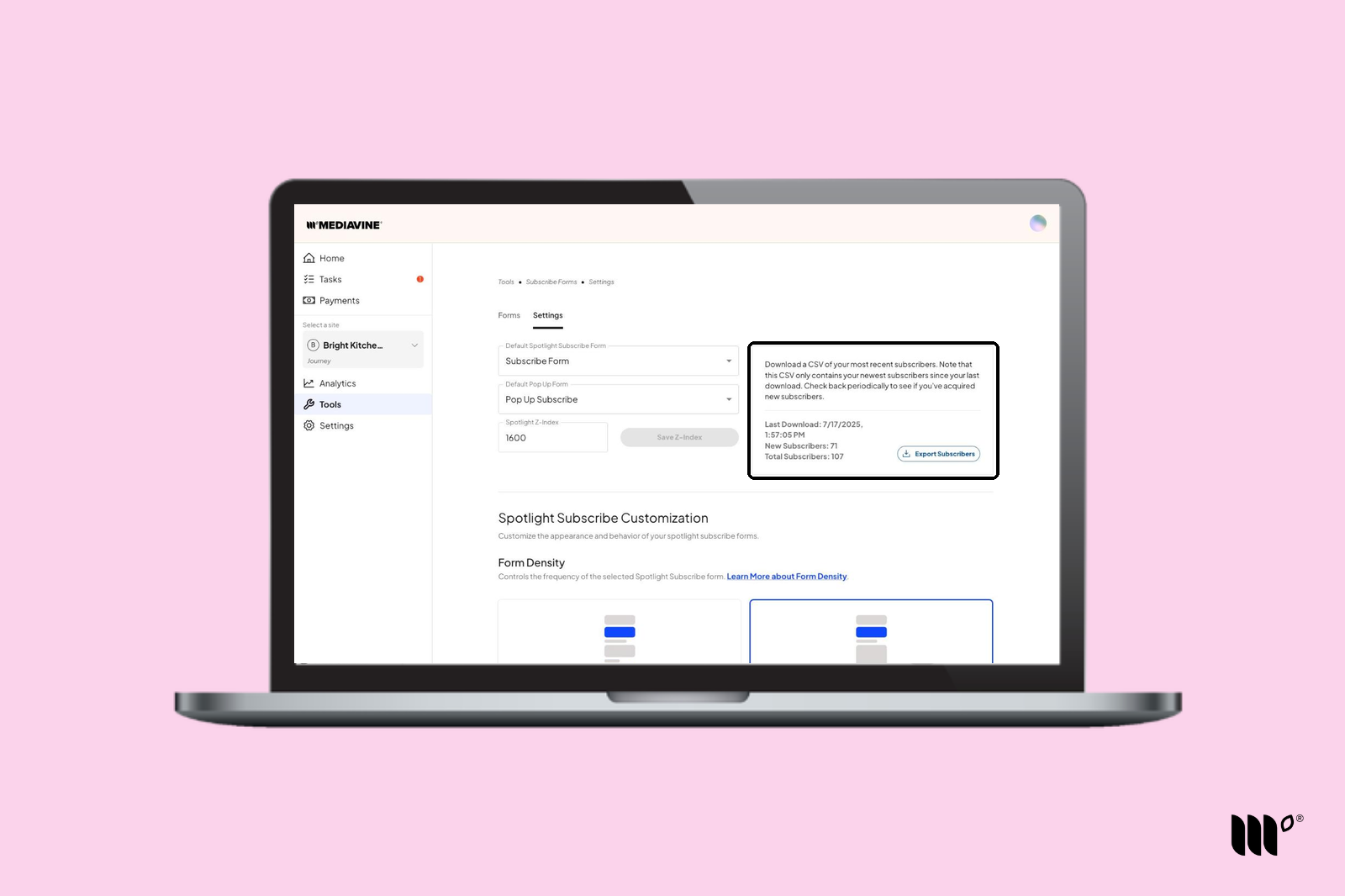
Step 2: When your export is ready, click Download. We'll also email you a download link.
Next to the button, you'll see:
- Last Download: when you last downloaded your list
- New Subscribers: subscribers since your last download
- Total Subscribers: everyone who's subscribed
Each export includes your newest subscribers since your last download, so check back regularly.
The link in your dashboard can be clicked once, but the emailed link can be clicked as many times as you need. Both links expire after 7 days or when you initiate another download.
What's in the CSV?
|
Column |
What it is |
|---|---|
|
createdAt |
When the reader subscribed |
|
|
The reader's email address |
|
firstName |
The reader's first name, if your form asks for it |
|
clientIp |
The reader's IP address |
|
widgetName |
The name of the form they subscribed with |
|
conversionUrl |
The page they subscribed on |
|
source |
How they subscribed (for example, Print Pass subscribers show lockedPrintDialog) |
Frequently Asked Questions
Can I download a separate list for each form?
Not right now. You get one CSV for all of your forms. Use the widgetName column to see which form each reader used.
Why won't my CSV download?
- Use a computer, not a phone or tablet.
- Try Chrome.
- Do a hard refresh (Cmd + Shift + R on Mac, Ctrl + F5 on Windows).
- Turn off ad blockers.