
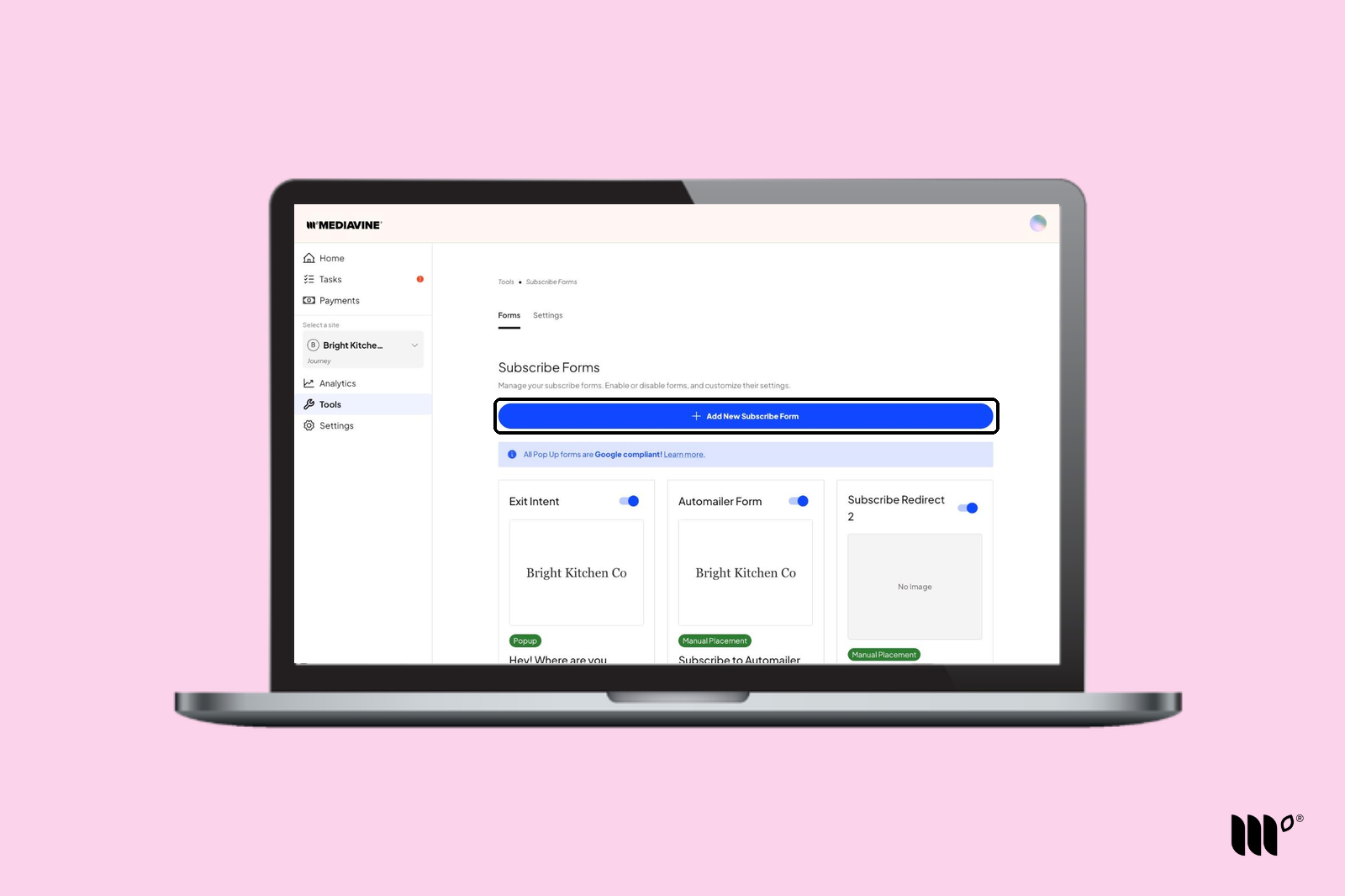
Step 1: Go to Tools > Subscribe Forms in your Publisher Dashboard and click Add New Subscribe Form.
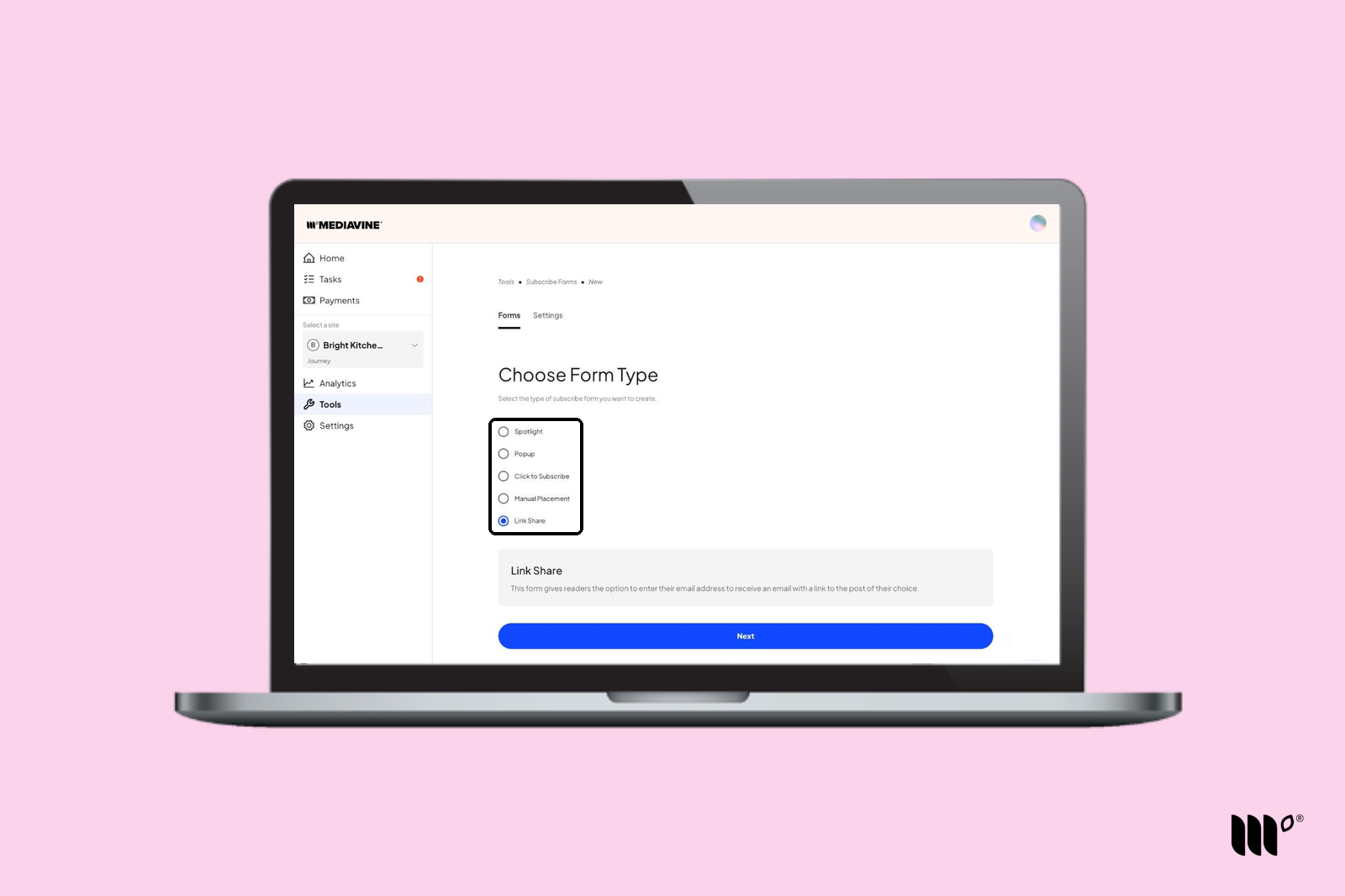
Step 2: Choose your form type, then click Next. Not sure which one? See What are Subscribe Forms?
Step 3: Fill out your form's details. The preview on the right updates as you go, and you can switch between desktop and mobile views.
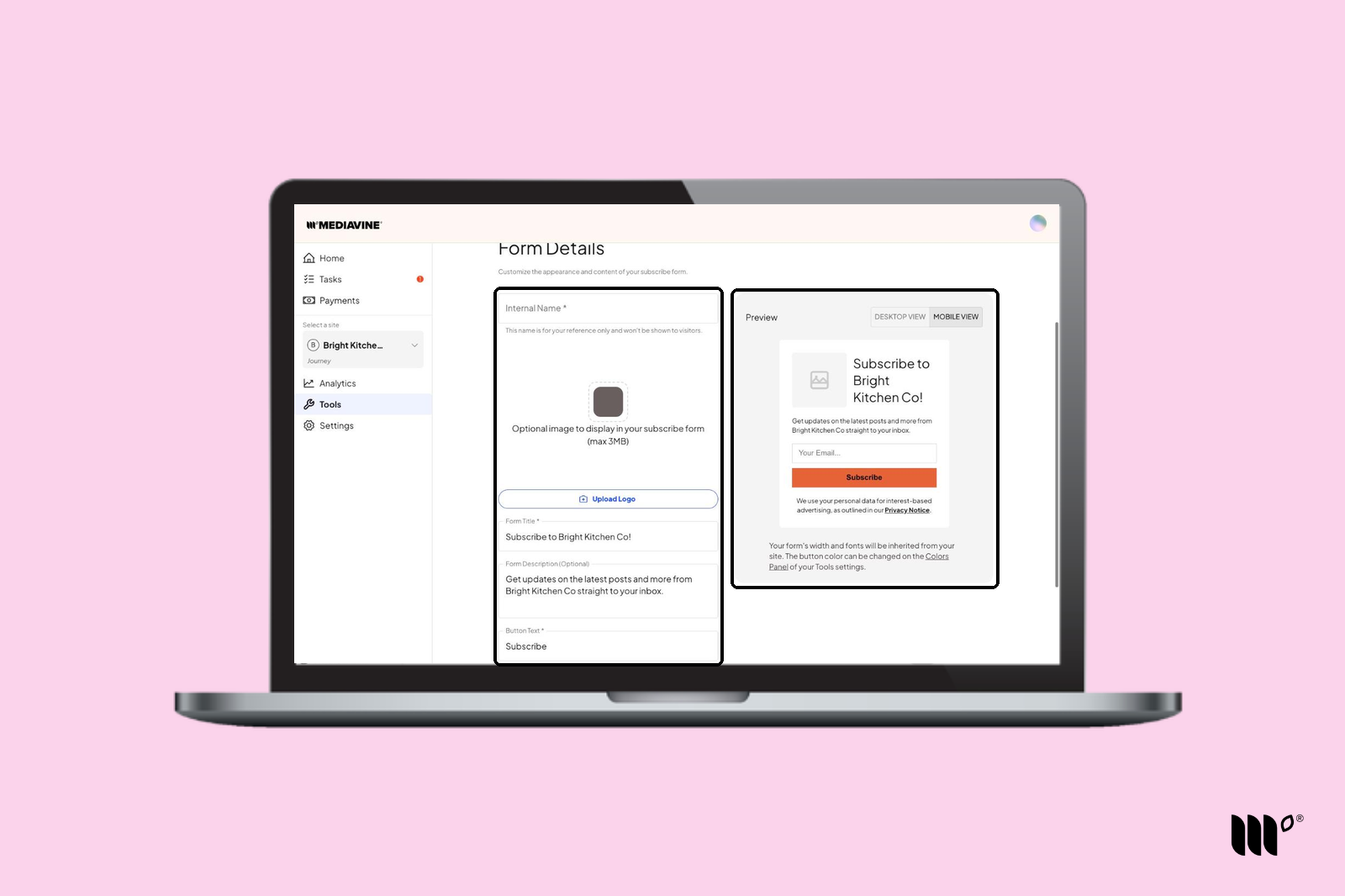
- Internal Name: only you see this. It's how the form is listed in Tools > Subscribe Forms.
- Image (optional): we recommend a square (1:1) image. Max 3MB.
- Form Title: the bold headline readers see.
- Form Description (optional): tell readers what they'll get and how often.
- Button Text: your call to action, like "Subscribe" or "Send Me Recipes."
Your form uses your site's fonts and width. The button uses the accent color from General Settings.
Popup forms also ask how big the form should be on mobile (Small floats in the center of the screen; Large fills it) and when it should appear. See [Pop Up Subscribe] for more details.
Step 4: Click Next to finish creating your form.
After You Create Your Form
Your new form is listed in Tools > Subscribe Forms. Click Manage Form to finish setting it up:
- Spotlight and Popup forms: set the form as your default forms to show it on every post, or use Category Targeting to show it on certain categories.
- Click to Subscribe and Manual Placement forms: copy the CSS class or code to add the form to your site.
- Link Share forms: set the form as your default Spotlight form or your Most Valuable Content form.
- Any form: add Form Actions to send subscribers to your Email Service Provider, turn on the Automailer List, or add a Redirect Link.