
You can delete Subscribe forms you no longer need from your Publisher Dashboard. Deleting a form is permanent. If you might use the form again, disable it instead.
How to Delete a Subscribe Form
Step 1: Go to Tools > Subscribe Forms.
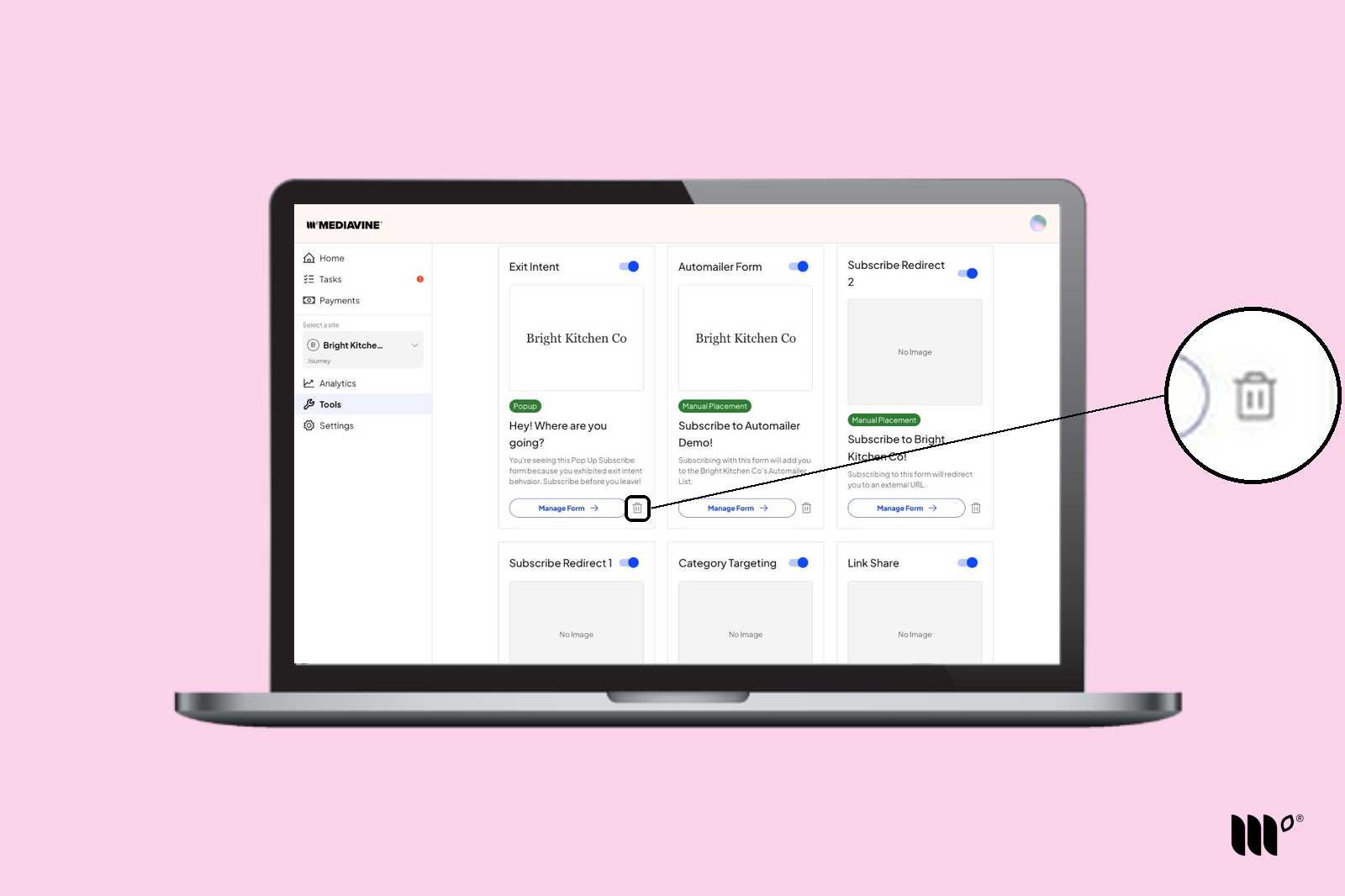
Step 2: Find the form you want to delete and click the trash can icon next to Manage Form.
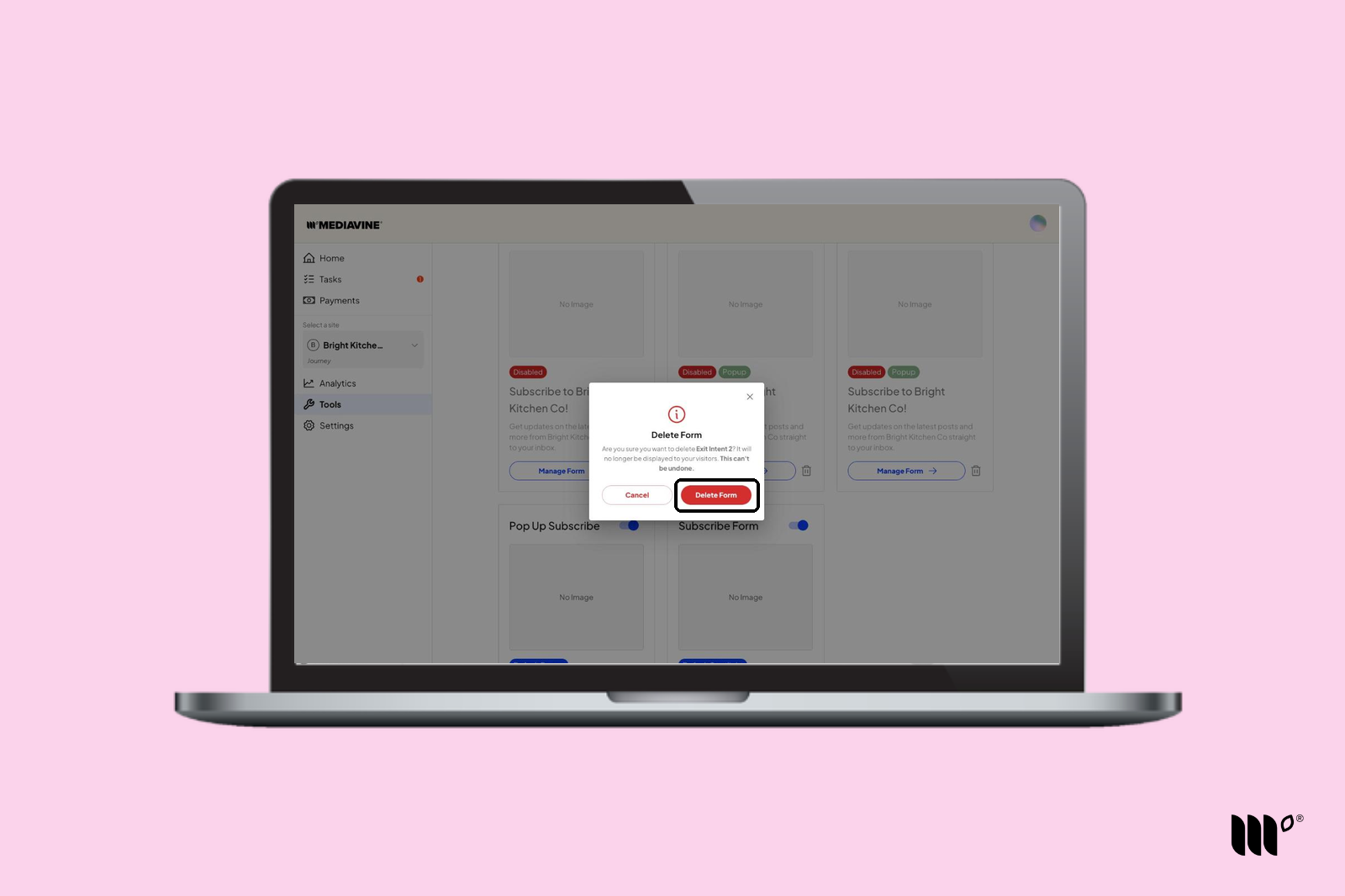
Step 3: Click Delete Form to confirm.
Why Can't I Delete a Form?
Forms that are assigned a spot in Subscribe Forms > Settings don't have a trash can icon. This includes:
- your Default Spotlight Form
- your Default Pop Up Form
- your Most Valuable Content form
- forms assigned to Multi Form Density
To delete one of these forms, first remove it from its spot in Subscribe Forms > Settings. Then delete it from Tools > Subscribe Forms.
What Happens to My Subscribers?
Subscribers aren't tied to a form, so deleting a form doesn't remove anyone. Everyone who signed up through it stays in your subscriber CSV, and you can still download your subscribers from Tools > Subscribe Forms > Settings.