
Edit a Form
Step 1: Go to Tools > Subscribe Forms and click Manage Form on the form you want to change.
Step 2: Update your form. At the top, you can change:
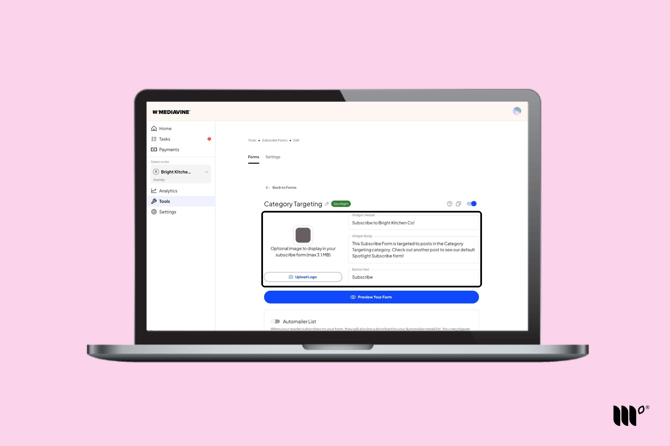
- Form name: click the pencil icon next to the name.
- Image: click Upload Logo. We recommend a square (1:1) image.
- Widget Header, Widget Body and Button Text: what readers see on the form.
Click Preview Your Form to see your changes. Popup and Click to Subscribe forms also have a Mobile Form Size setting.
Further down the page, you'll find:
- Automailer List: subscribers from this form also get your Automailer emails.
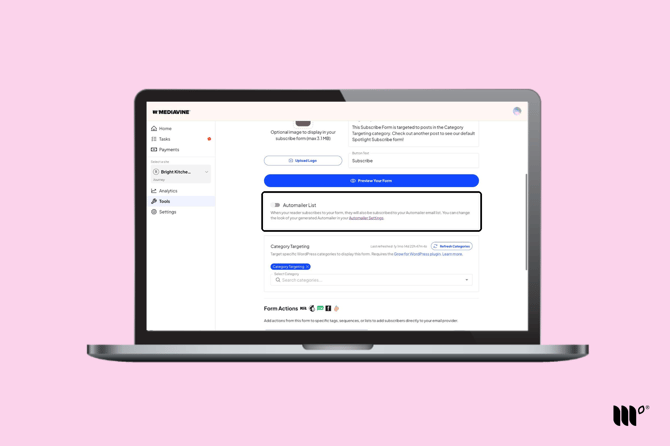
- Category Targeting (Spotlight and Popup forms only)
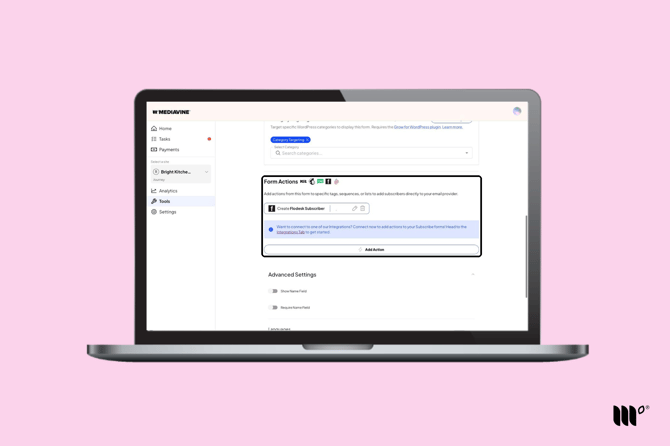
- Form Actions: send subscribers to your Email Service Provider or add a Redirect Link.
Step 3: Click Save Changes.
Advanced Settings
Click Advanced Settings at the bottom of the form to expand it: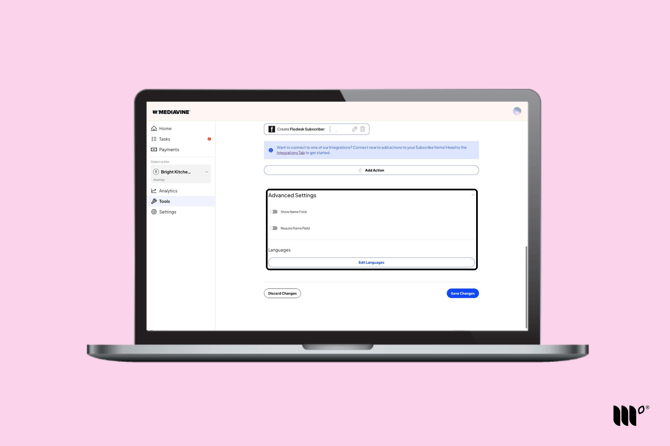
- Show Name Field: adds an optional first name field.
- Require Name Field: makes the first name field required. First names are included in your subscriber CSV and in Zapier.
- Allow Spotlight Form (Manual Placement forms only): see Manual Placement.
- Languages: click Edit Languages to add your own header, body and button text in German, Spanish, French, Italian, Dutch or Swedish.
Note: Use Languages for non-English text. If you type another language into the main Header, Body and Button fields, readers will see the default form text translated into their browser's language instead.
Clone a Form
Cloning copies a form, including its Category Targeting and Form Actions, so you don't have to set them up again. For example, clone your Holiday Cakes form to make a Holiday Cookies form.
Step 1: Click Manage Form on the form you want to copy.
Step 2: Click the Clone Form icon at the top right.
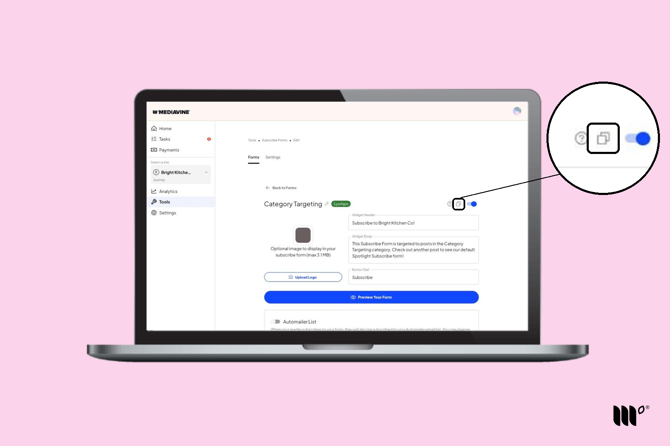
Step 3: Choose the form type for your copy and confirm. To use Category Targeting, choose Spotlight or Popup.
Step 4: Your copy is turned off at first. Edit it, then turn on the toggle at the top right and click Save Changes.
Disable a Form
A single form: In Tools > Subscribe Forms, switch off the toggle on the form.
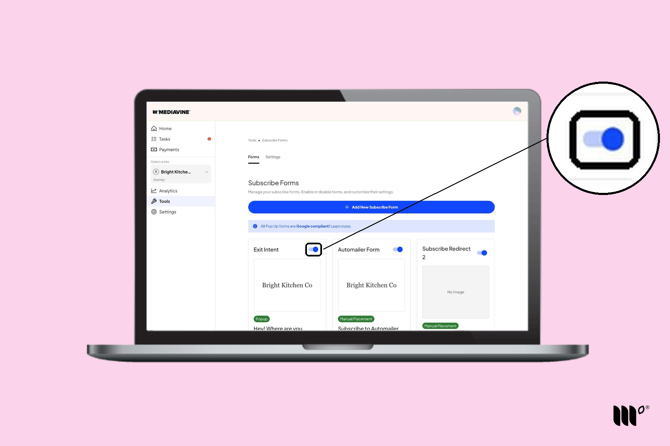
Your default Popup form: Go to Subscribe Forms > Settings and set Default Pop Up Form to none. Popup forms with Category Targeting will still show on their categories.
Your default Spotlight form: You can't set this to none. Instead, choose a turned-off Spotlight form as your default.
Your Most Valuable Content form: Go to Subscribe Forms > Settings and switch off Most Valuable Content.
Don't need a form anymore? You can also delete it.