
To lock a PDF or almost any printable image in WordPress, you can add an Additional CSS class to that block.
To lock a PDF, use a Gutenberg File block (see note). To lock an image, use an Image block.
Exclusive Content is a legacy tool only available to publishers who used it before Grow became Tools in November 2026.
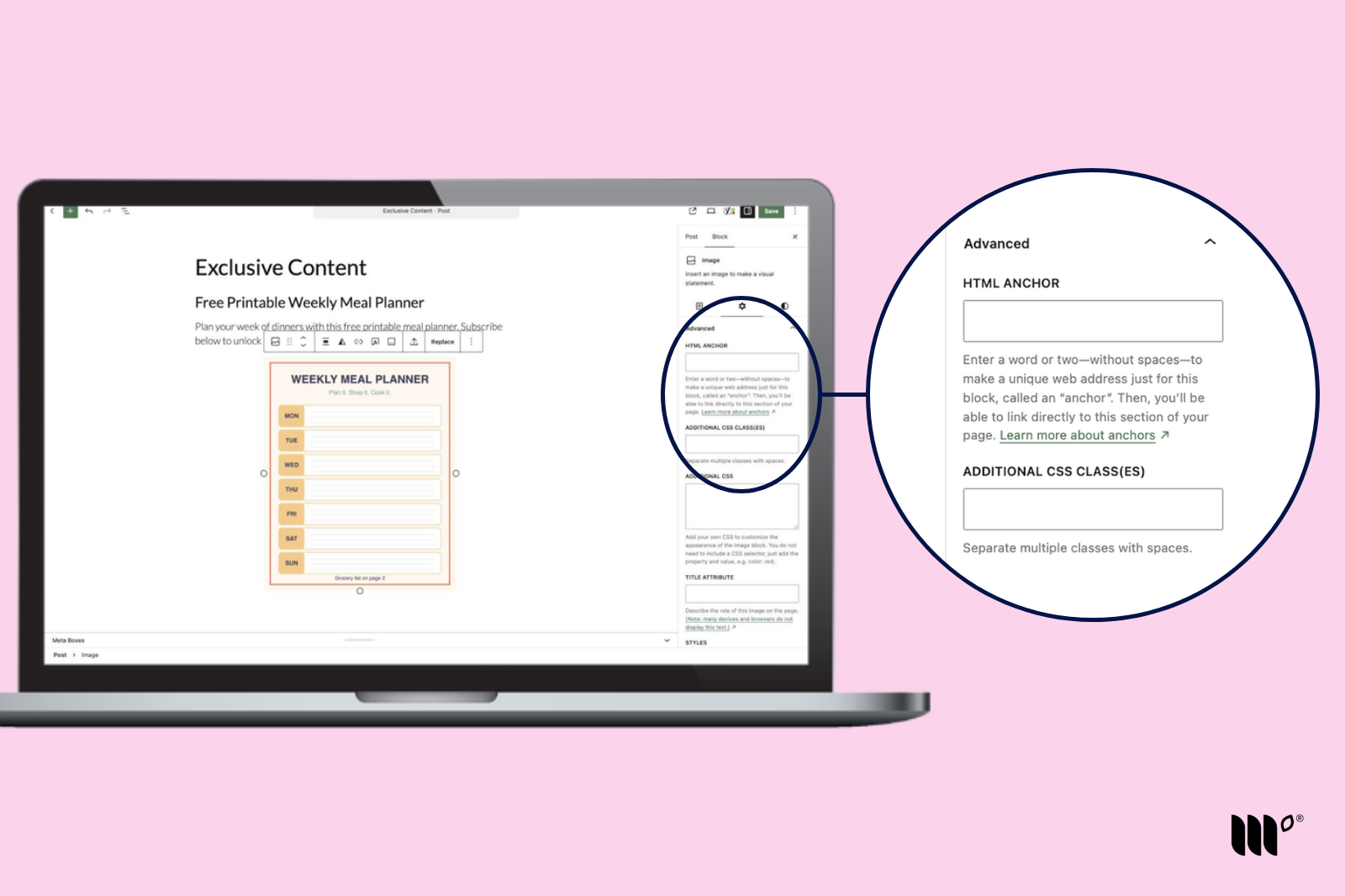
Step 1: In the WordPress block editor, click the block you want to lock and open the Advanced section on the right side of the screen.
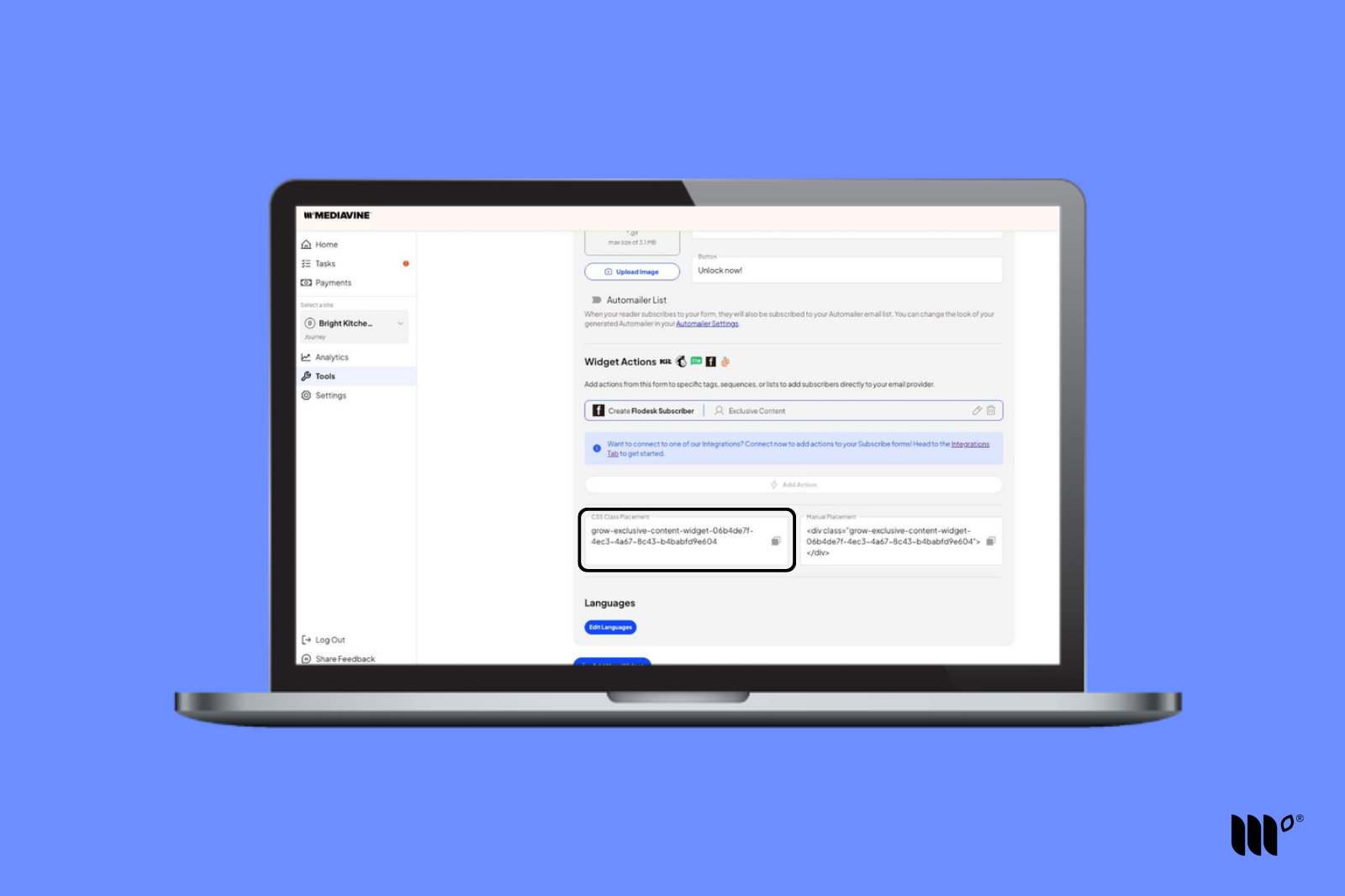
Step 2: In your Publisher Dashboard, go to Tools > Exclusive Content and copy the CSS Class Placement code from the widget you're using. Make sure you've saved the widget first (this generates the code).
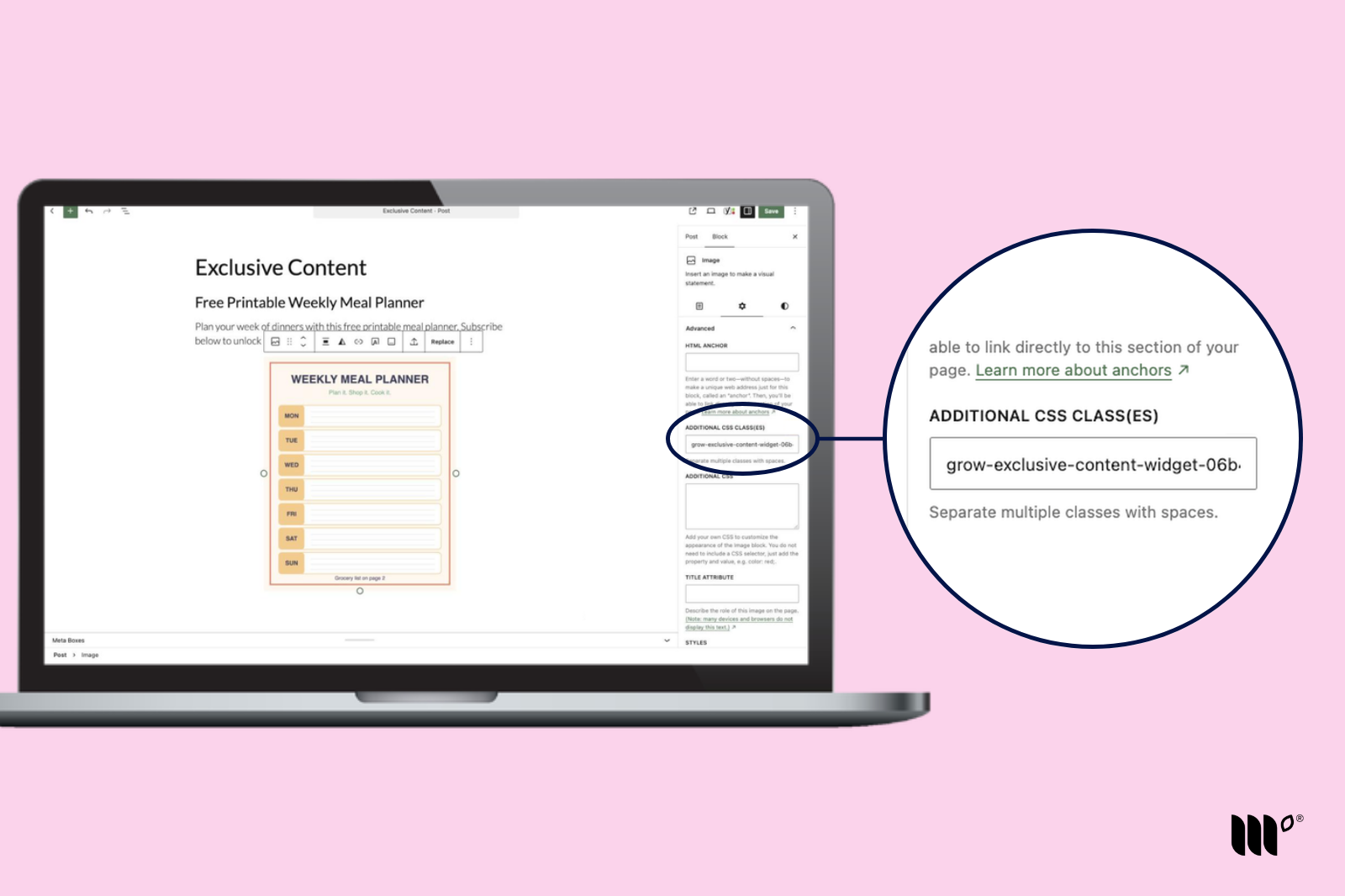
Step 3: Back in WordPress, paste the CSS Class Placement code in the Additional CSS class(es) field.
That's it!
Test your post in an incognito or private window.
Note for Gutenberg File Blocks
On mobile, Gutenberg File blocks show a text link to the file instead of the PDF preview. That makes the File block shorter than the 500px height Exclusive Content needs, so File blocks locked with the CSS class won't be locked on mobile devices.
To get around this, put your File block inside a Group block that's at least 500px tall, then apply the CSS class to the Group block.