
Most subscribers who no longer want your Automailer emails click Unsubscribe at the bottom of an email. If someone has trouble with that or asks you to remove them, you can do it yourself.
Removing Subscribers from Your Automailer List
Step 1: Go to Tools > Automailer, scroll down and click Advanced Settings to expand it.
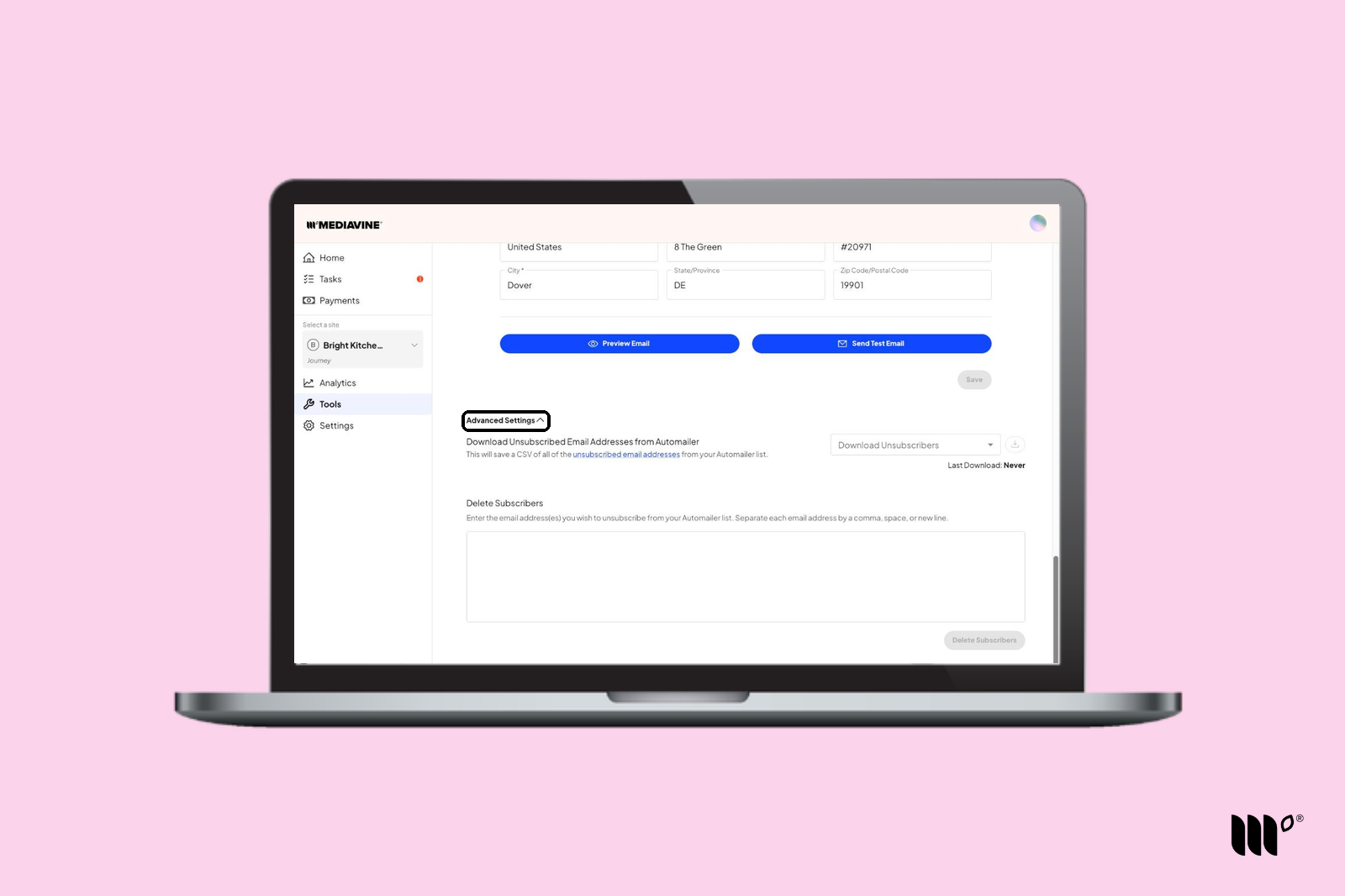
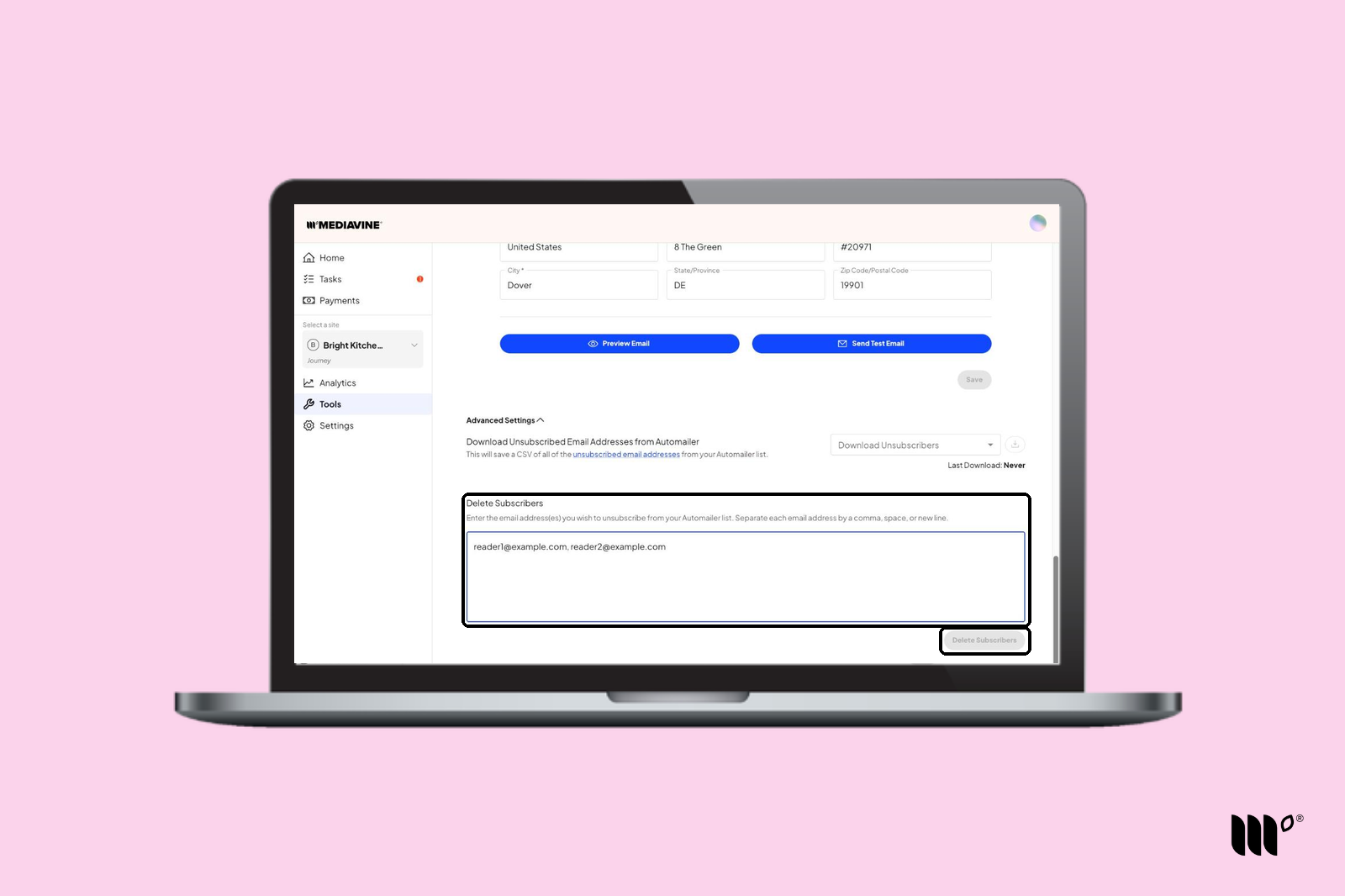
Step 2: In the Delete Subscribers box, enter the email addresses you want to remove. Separate multiple addresses with commas, spaces or new lines.
Note: You can remove up to 100 email addresses at a time. Have more than 100? Remove them in batches.
Step 3: Click Delete Subscribers.
Step 4: In the pop-up, type Unsubscribe to confirm, then click Delete Subscribers.
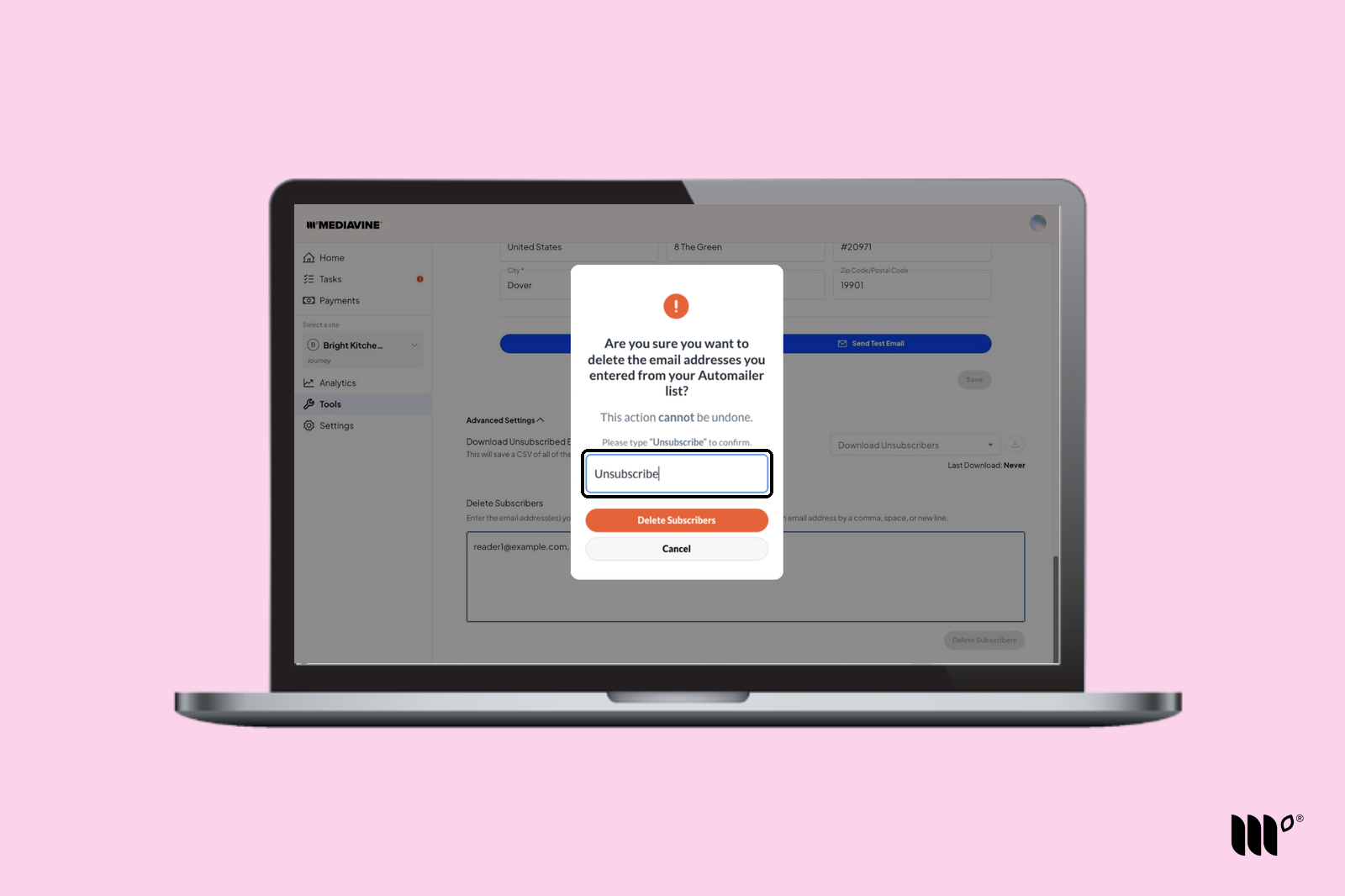
Note: Removing subscribers is permanent. You'll be asked to confirm each batch.
Step 5: You'll see a confirmation notice above the Delete Subscribers box. Those subscribers will no longer get your Automailer emails.
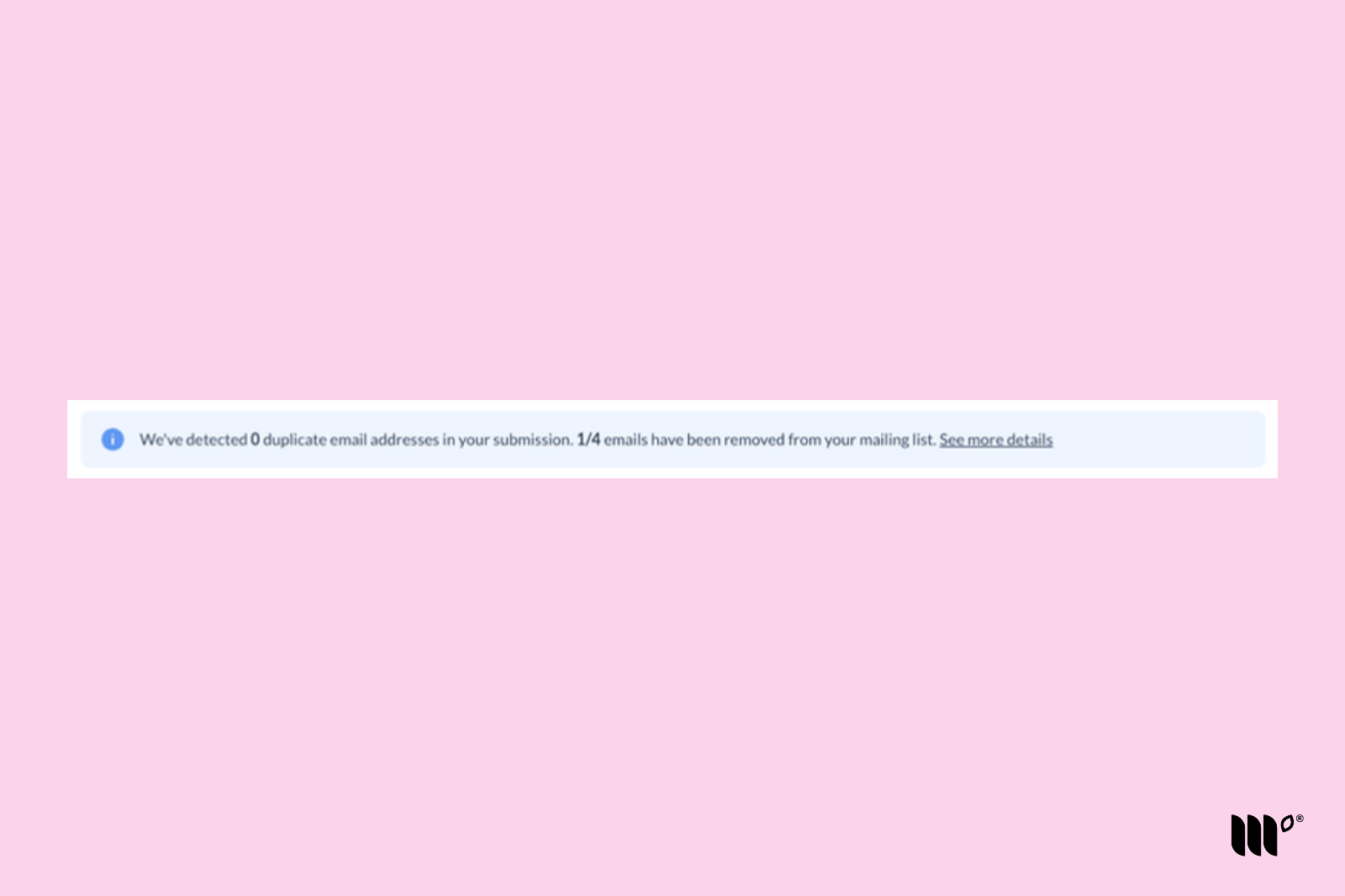
Click See more details to view your Deleted Subscriber Summary. It shows any duplicate emails, which emails were removed, and any emails that couldn't be removed because they weren't on your Automailer List.
Removing Automailer Unsubscribers from Your Email Service Provider
If readers who unsubscribed from Automailer also want off your Email Service Provider newsletter, you can either sync your unsubscribers or download a CSV of Automailer unsubscribers and remove them yourself.
Step 1: Go to Tools > Automailer and expand Advanced Settings.
Step 2: Under Download Unsubscribed Email Addresses from Automailer, choose an option from the Download Unsubscribers dropdown, then click the download button.
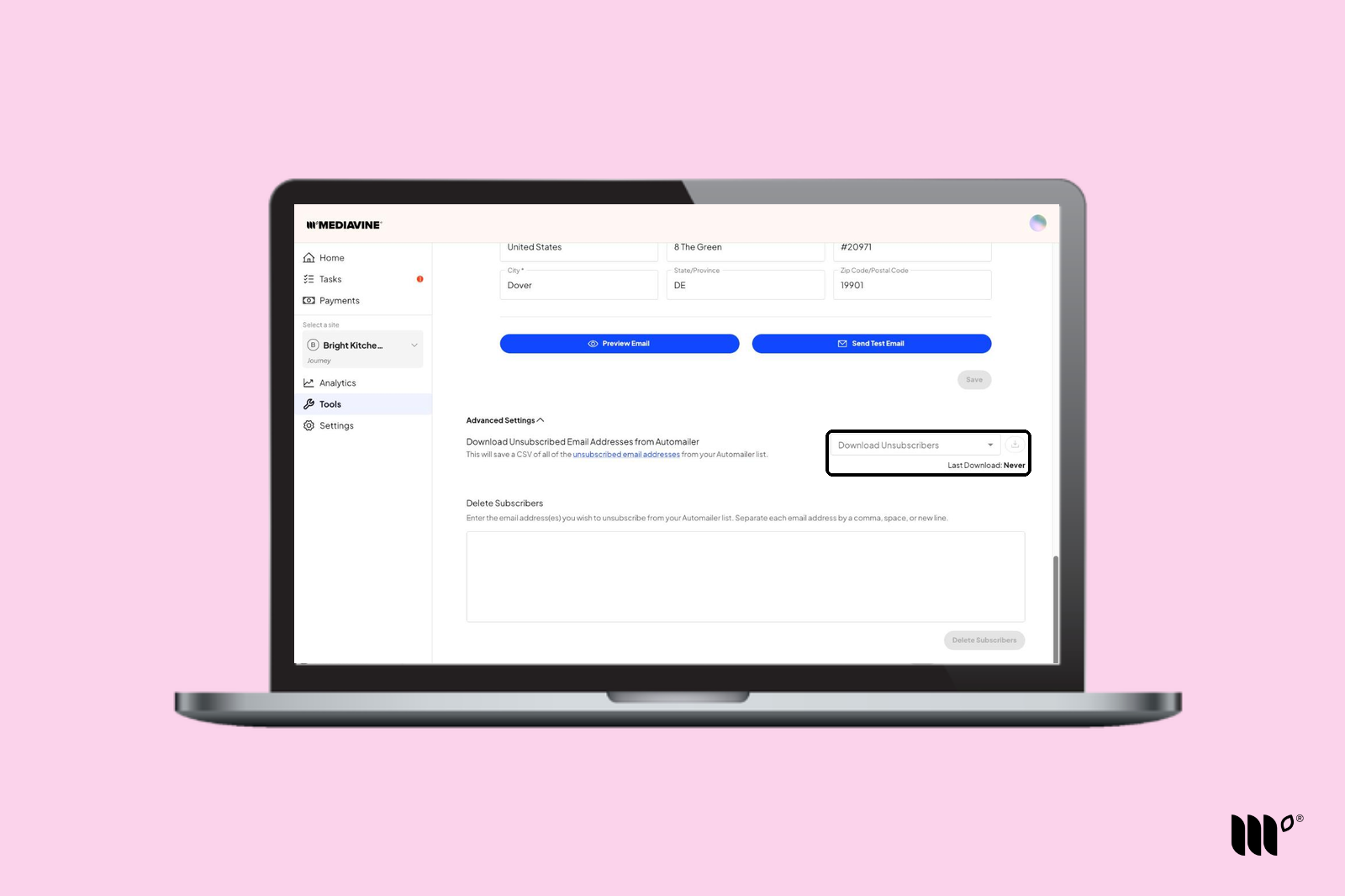
- New Unsubscribers downloads everyone who has unsubscribed since your last download.
- All Unsubscribers downloads everyone who has ever unsubscribed.
Step 3: When your CSV is ready, a download link appears below the dropdown. Click it to download your file. This link works once.
We'll also email you a download link. That link works for 7 days and can be used as many times as you like.
Step 4: Use the CSV to remove those addresses in your Email Service Provider: