
Kit is an Email Service Provider and marketing platform that lets you create and send emails to your subscribers.
The Kit integration lets you send subscribers from your Subscribe Forms, Print Pass, and Exclusive Content widgets to your Kit account.
How to Connect Kit
In your Publisher Dashboard, go to Tools > ESP Integrations and add your Kit Secret API Key. This is an important step, since it connects your Kit account. Then click Save Changes.
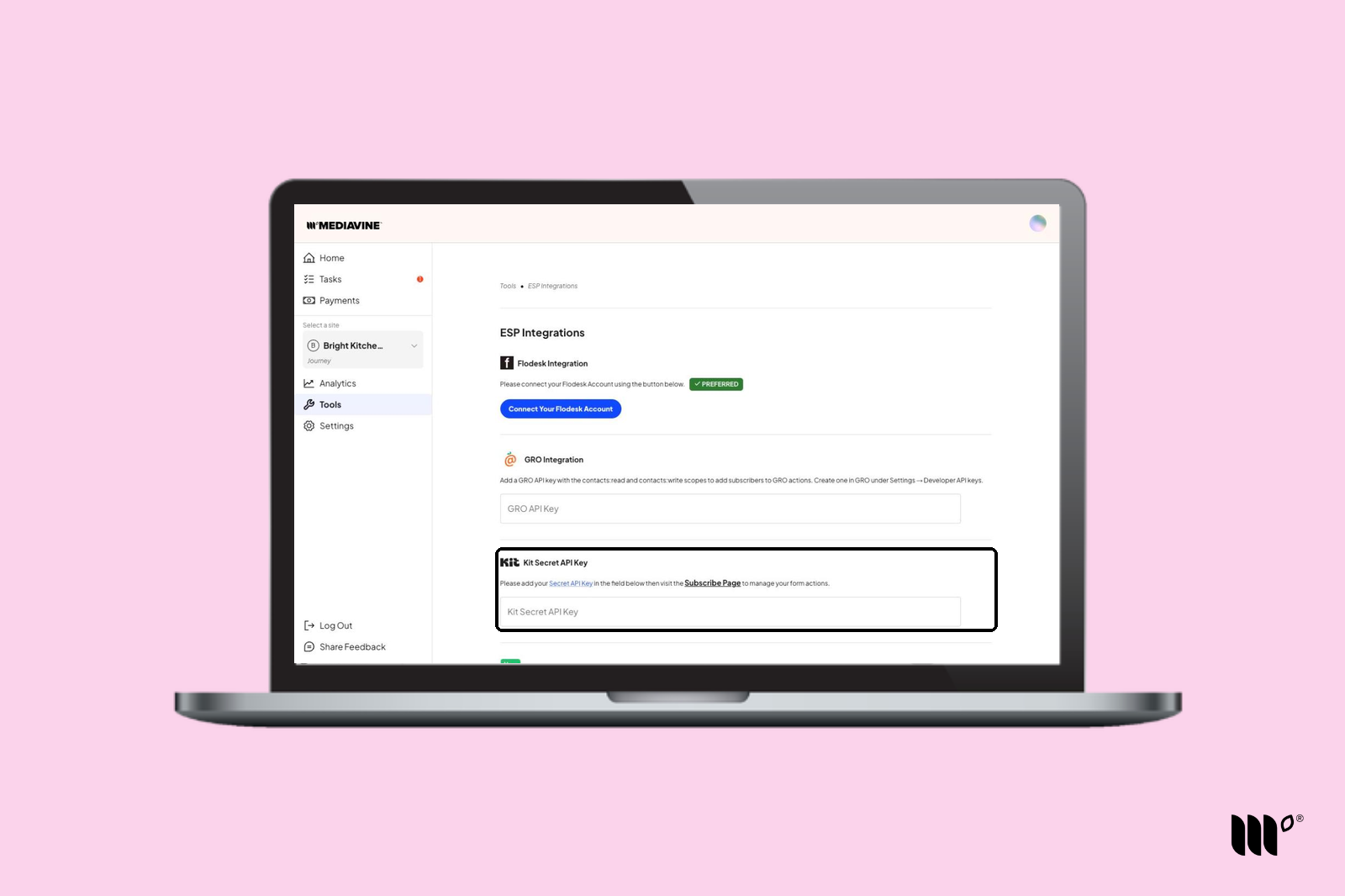
Need help finding your key? See Where to Find your Kit Secret API Key.
Subscribe Forms
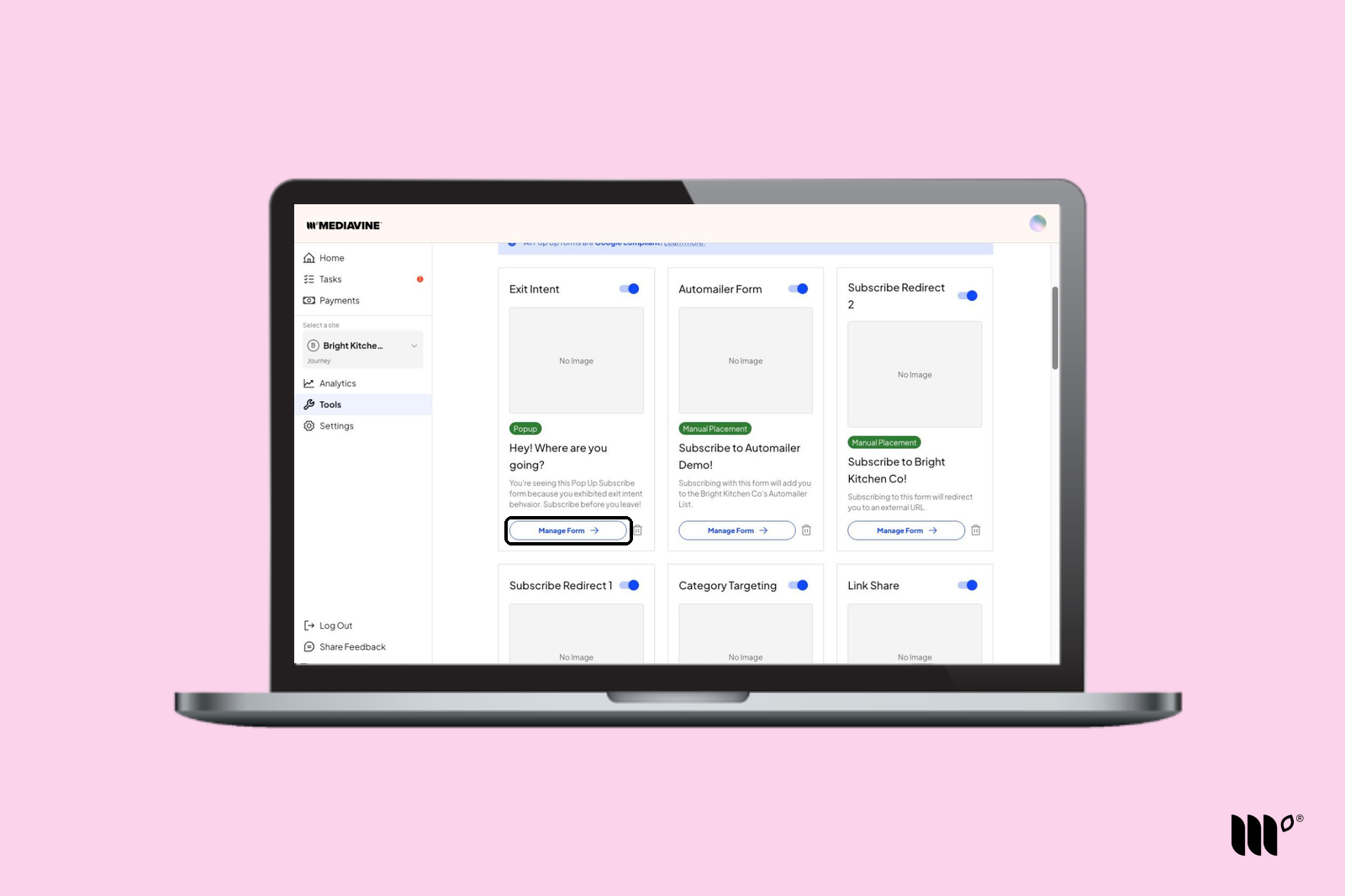
Step 1: Go to Tools > Subscribe Forms. You'll see all the Subscribe Forms you've created.
For each form, you can add a Form Action telling us where to send that form's subscribers in Kit. Click Manage Form on the form you want to connect to Kit.
Step 2: Scroll down to the Form Actions section and click Add Action to see the available Kit actions:
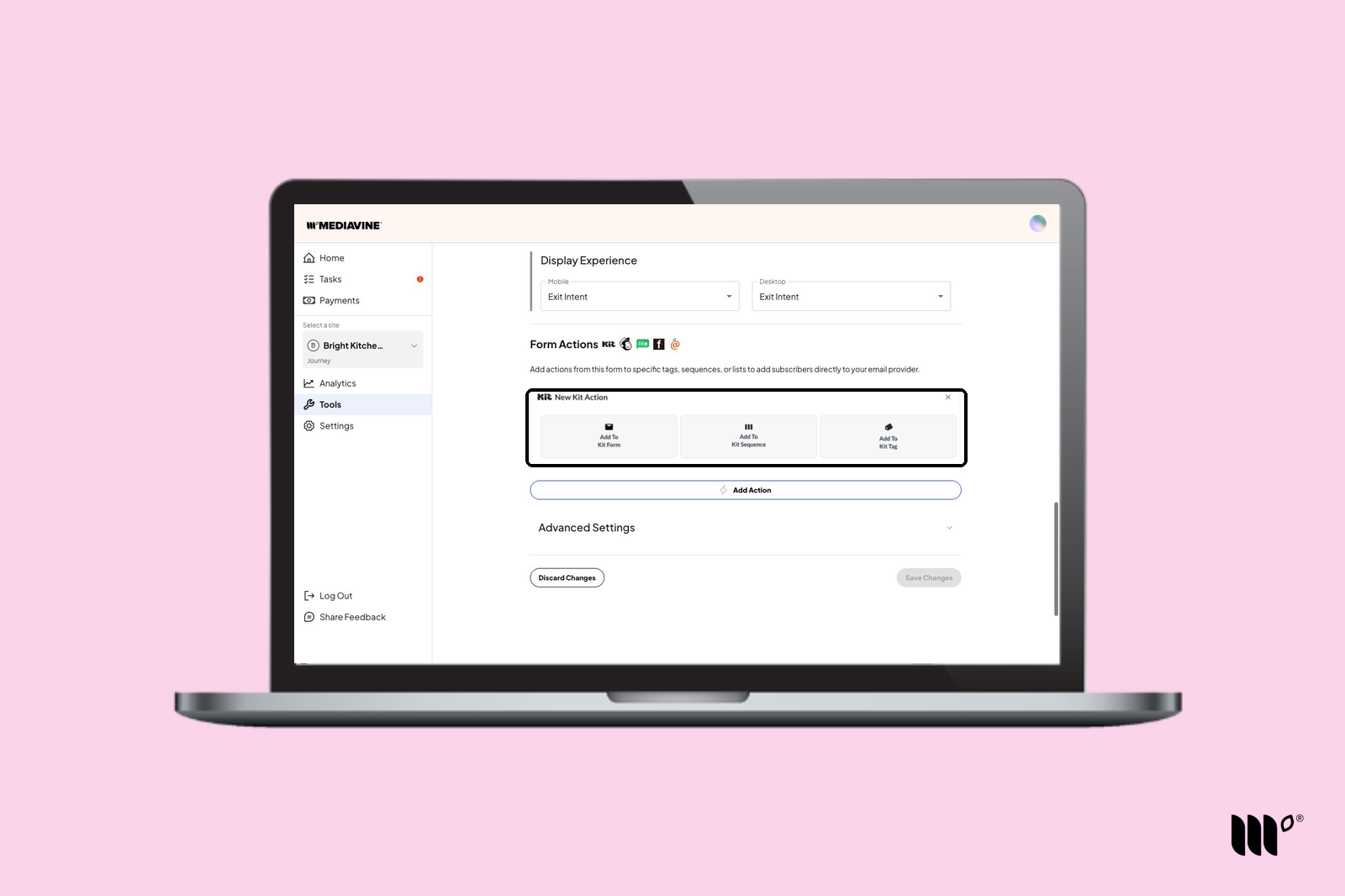
- Add to Kit Form sends the subscriber to Kit as if they had subscribed using your Kit form. Anything tied to that Kit form, like tags or email sequences, is applied to your subscriber.
- Add to Kit Sequence adds your subscriber to the chosen email sequence in Kit, so they receive all the emails in the sequence.
- Add to Kit Tag adds your subscriber to the chosen Kit tag, so you can organize your subscribers in Kit.
Step 3: When you're happy with your Kit Form Actions, click Complete Action. Then scroll down and click Save Changes in the bottom right corner.
Note: Add Form Actions to every Subscribe Form that appears on your site so all of your subscribers are sent to Kit!
Print Pass and Exclusive Content
Step 1:
- For Print Pass: Go to Tools > Print Pass and scroll down to the Actions section.
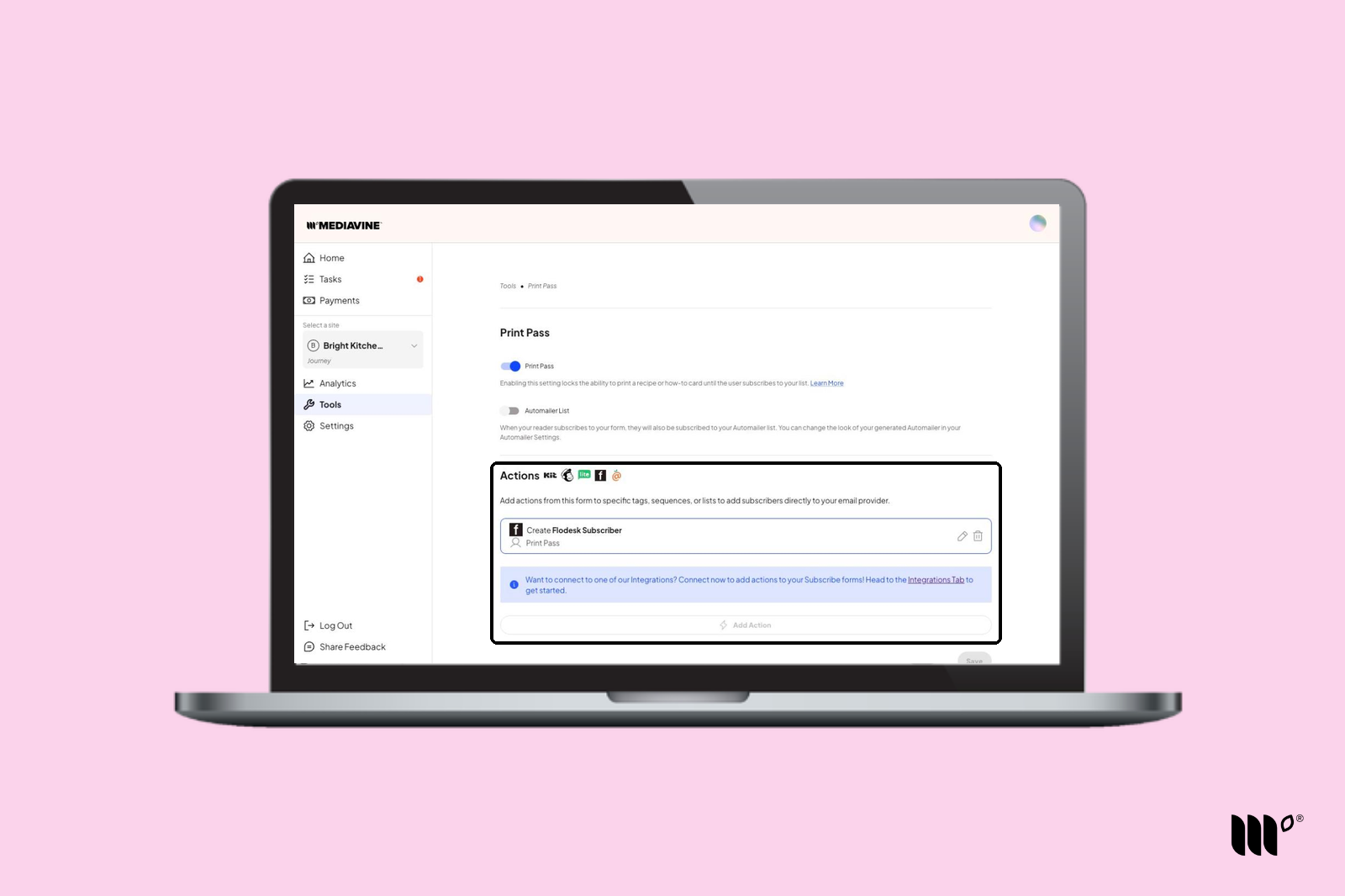
- For Exclusive Content*: Go to Tools > Exclusive Content and scroll down to the Widget Actions section of the widget you're adding Form Actions to.
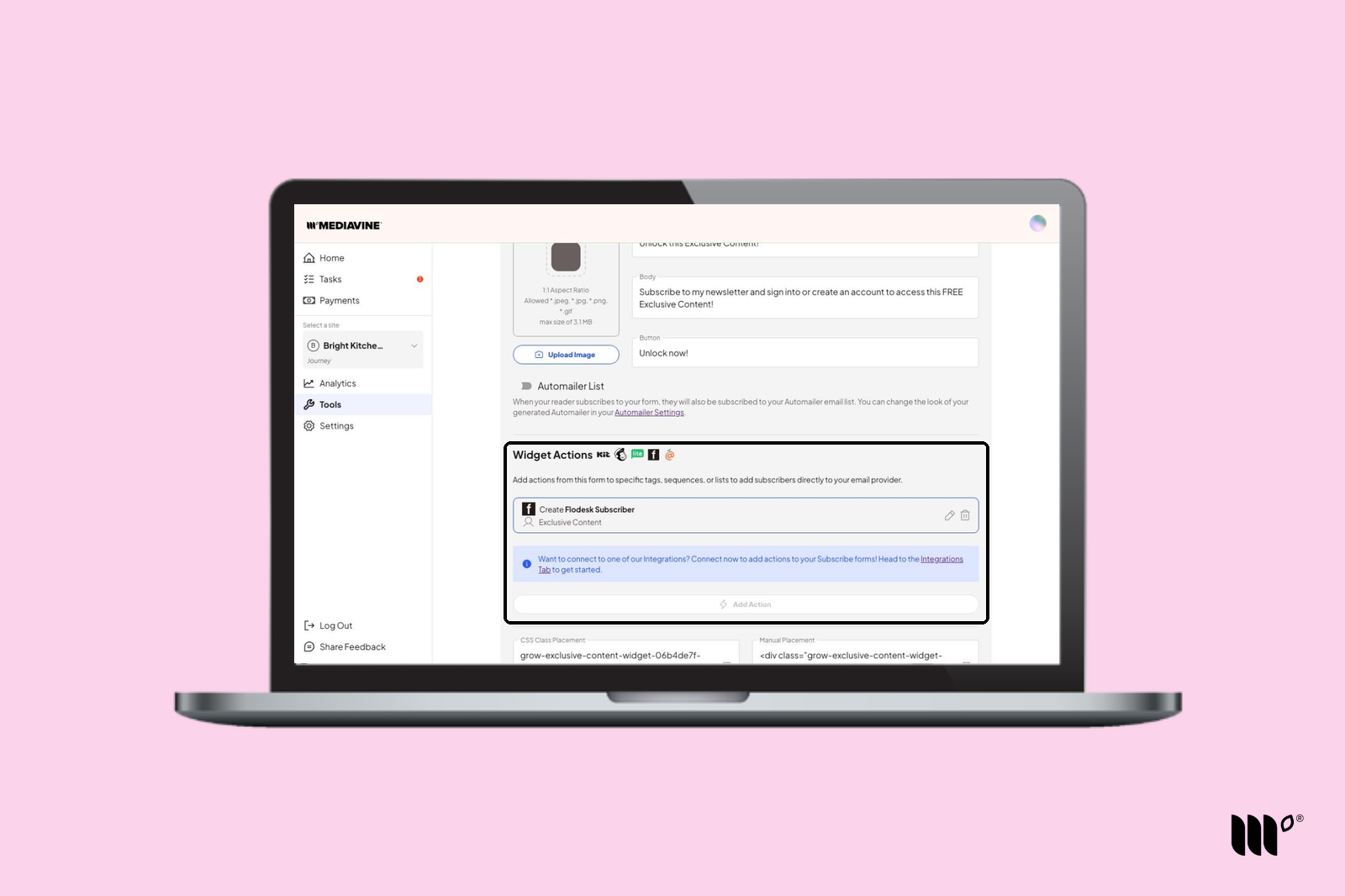
Step 2: Click Add Action to see the available Kit actions.
Step 3: Choose from the available Kit actions to send your subscribers to the right Kit form, sequence, or tag:
- Add to Kit Form sends the subscriber to Kit as if they had subscribed using your Kit form. Anything tied to that Kit form, like tags or email sequences, is applied to your subscriber.
- Add to Kit Sequence adds your subscriber to the chosen email sequence in Kit, so they receive all the emails in the sequence.
- Add to Kit Tag adds your subscriber to the chosen Kit tag, so you can organize your subscribers in Kit.
Step 4: When you're happy with your Kit Form Actions, click Complete Action. Then click Save.
Note: If you use more than one Exclusive Content widget, add Form Actions to each one so all of your subscribers are sent to Kit!
Want more information about Kit? Check out their website to learn more, access their resources, and get started today!
*Exclusive Content is a legacy tool only available to publishers who used it before Grow became Tools in November 2026.