-spacing.png?width=385&height=100&name=mediavine-horiz-white-pn-RGB-(r)-spacing.png)
MCM is a feature within Google Ad Manager that allows Mediavine to manage your ad inventory. To comply with our Google partnership requirements, you'll need a Google Ad Manager account and to accept our MCM invitation granting us access.
If you have not had an Ad Manager account in the past, that is okay; our invitation will kick off the process of opening a new Ad Manager account.
If you currently or in the past have had an AdSense or Ad Manager account, please use the email address associated with that account for the MCM invitation.
💡The Ad Manager account must belong to the site owner. If you're managing the site or handling setup on their behalf, be sure to enter the email address associated with the site owner — not your own. The site owner can provide you with access to the Ad Manager account by following these instructions.
How to create or link an Ad Manager account in the onboarding process:
After being approved, you'll be instructed to sign our Terms of Service, set up your ads.txt, and add our script to your site. Once that's done, you'll be prompted to begin the MCM process by providing the email associated with your current Ad Manager/AdSense account — or the email you'd like to use to open one.
.png?width=670&height=346&name=image%20(32).png)
You will then receive an email invitation from Google Ad Manager with the subject line “Request to manage your ad inventory.”
.png?width=670&height=304&name=image%20(33).png)
Accept the request and follow the instructions provided by Google. These might vary depending on whether or not you have an existing Ad Manager account.
If you don’t have an existing Google Ad Manager account:
If this is your first time opening an AdSense or Ad Manager account, you will be guided through a few steps to set up a Google account. It is a straightforward process, but please let us know if you run into any issues.
There are 3 steps to the process:
1. Identity Verification - Google will ask you to confirm some information they'll need on file, including your date of birth, address, and supporting documentation. They'll also request authorization for us to manage your ad inventory. Make sure your identifying information and address are accurate and up to date, as these are required to move on to Step 2.
2. PIN Verification - Google will mail a postcard containing a Personal Identification Number (PIN) to your payment address on file. Delivery typically takes 5–10 business days, depending on your local postal service.
3. Site Review - While your PIN is in transit, Google will also conduct a review of your site. This typically takes 3–5 business days, but can take up to 16 business days.
If you have an existing Google Ad Manager account:
Once you accept having your ads managed by Mediavine, Google will also conduct a review of your site. This typically takes 3–5 business days, but can take up to 16 business days.
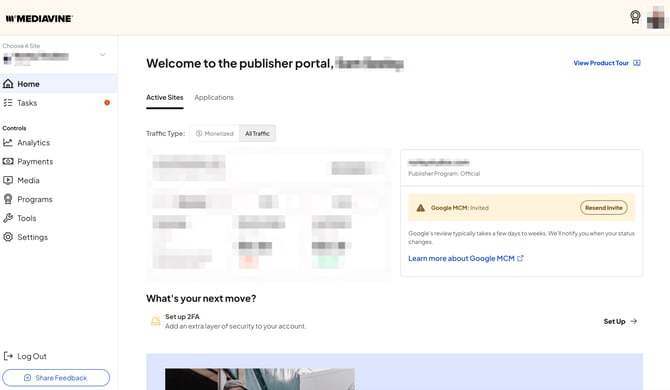
💡Your MCM status will be reflected in your dashboard and will update as your site moves through the process.
What if your account is not approved?
An onboarding specialist will reach out to help you troubleshoot this disapproval.
In the meantime, I recommend double-checking that the email you provided matches the one associated with any existing Google Ad Manager, AdSense, AdMob, or YouTube monetization account. If it doesn't, that mismatch may be causing the disapproval. We will provide more details on how to resolve this.