
Links Toolkit makes generating Email Connect links for your email newsletters quick and easy.
How Email Connect Works
An Email Connect link is your post's short link plus your Email Service Provider's email tag. When subscribers click it in your newsletter, we can identify them on your site, which can mean higher CPMs. The Links Toolkit builds the whole link for you.
Using the Links Toolkit in Your Publisher Dashboard
Go to Tools > Links Toolkit.
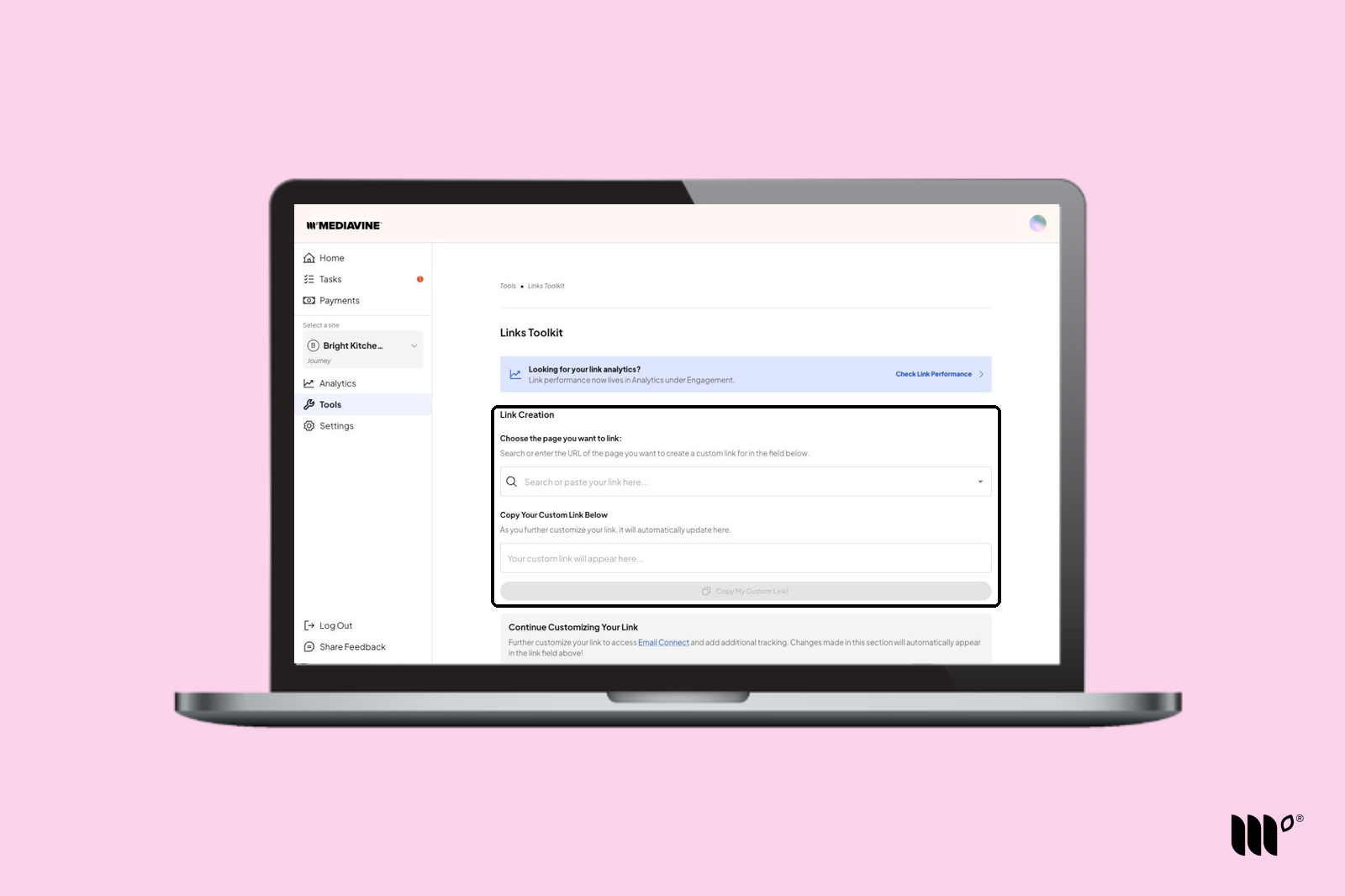
Step 1: Under Choose the page you want to link, search for or paste the URL of the page you want to link, then select it.
Step 2: Under Continue Customizing Your Link, choose your Email Service Provider under Choose your vendor. You can also add UTM tracking parameters under Enter campaign information (optional). Your changes are added to your link automatically.
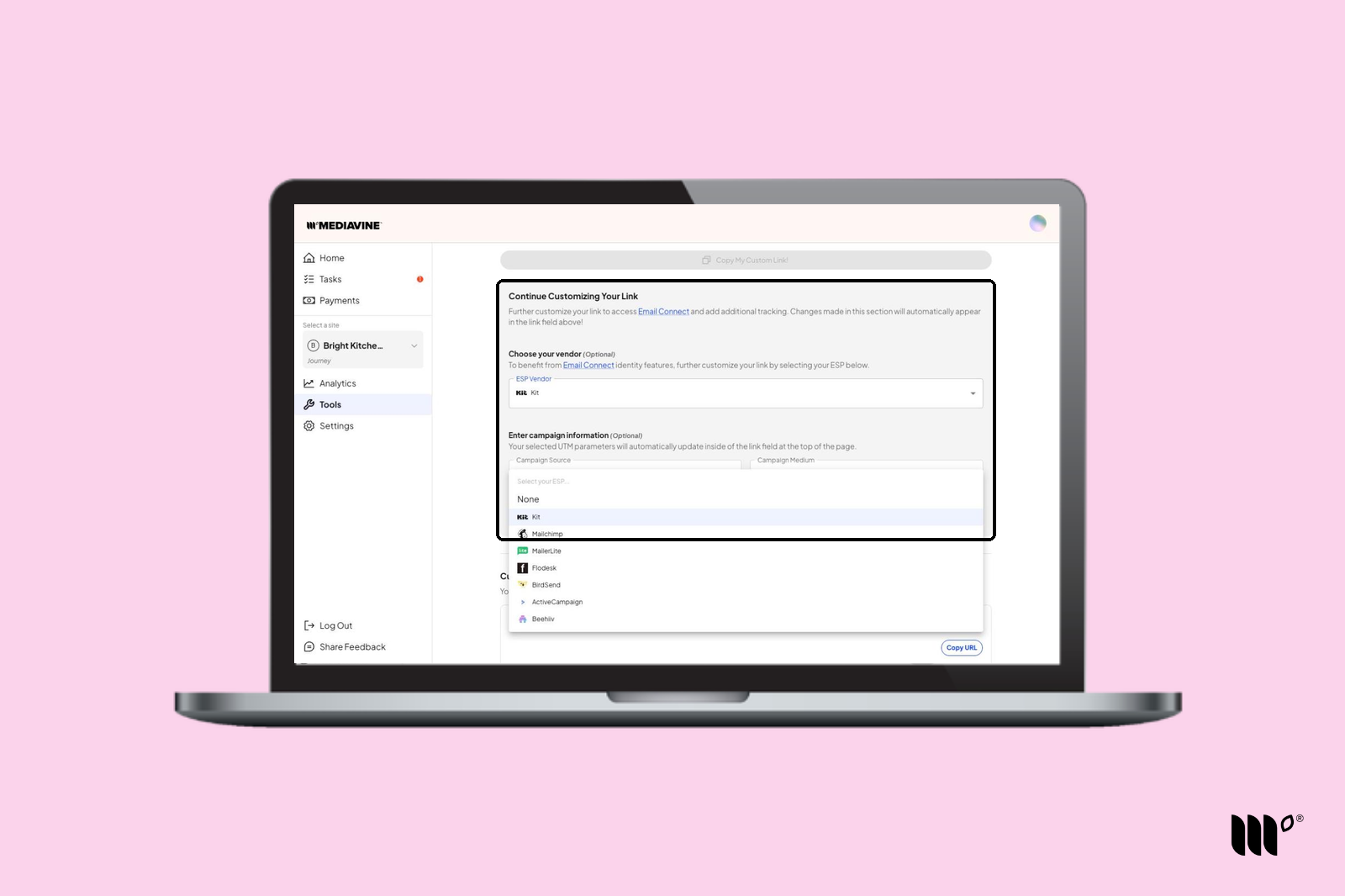
Note: If you skip choosing your Email Service Provider, you'll get a plain short link, just like the one from Copy Link. It can only identify readers who have already given us their email address on any site. Choose your Email Service Provider to make it an Email Connect link.
Step 3: Click Copy My Custom Link! and paste the link into your newsletter.
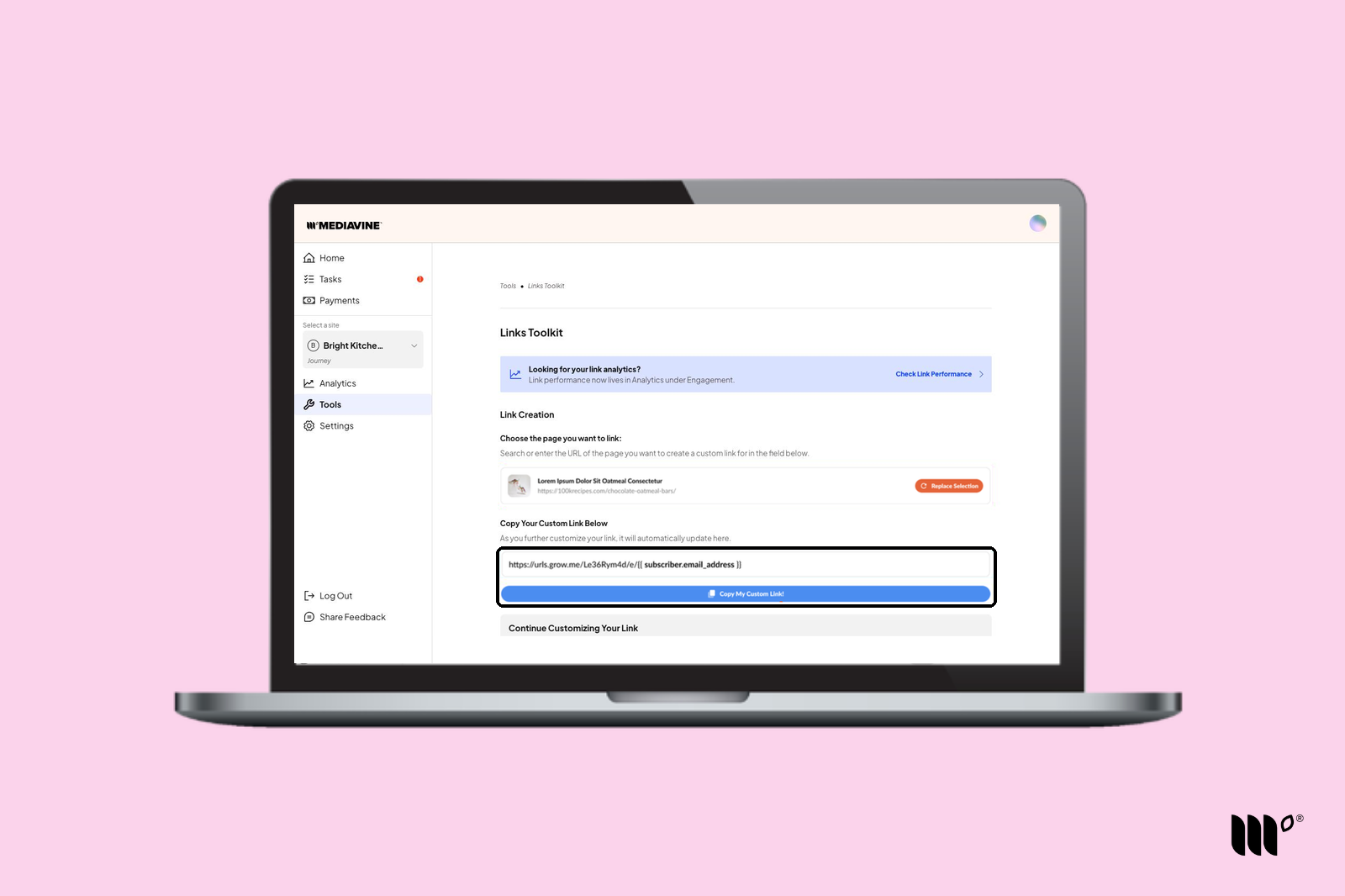
Need more links for your newsletter? Choose a different page in Step 1. Your Email Service Provider and UTM choices carry over.
Past Generated Links
Your most recent custom links are saved at the bottom of the Links Toolkit and in Analytics > Engagement > Link Analytics.
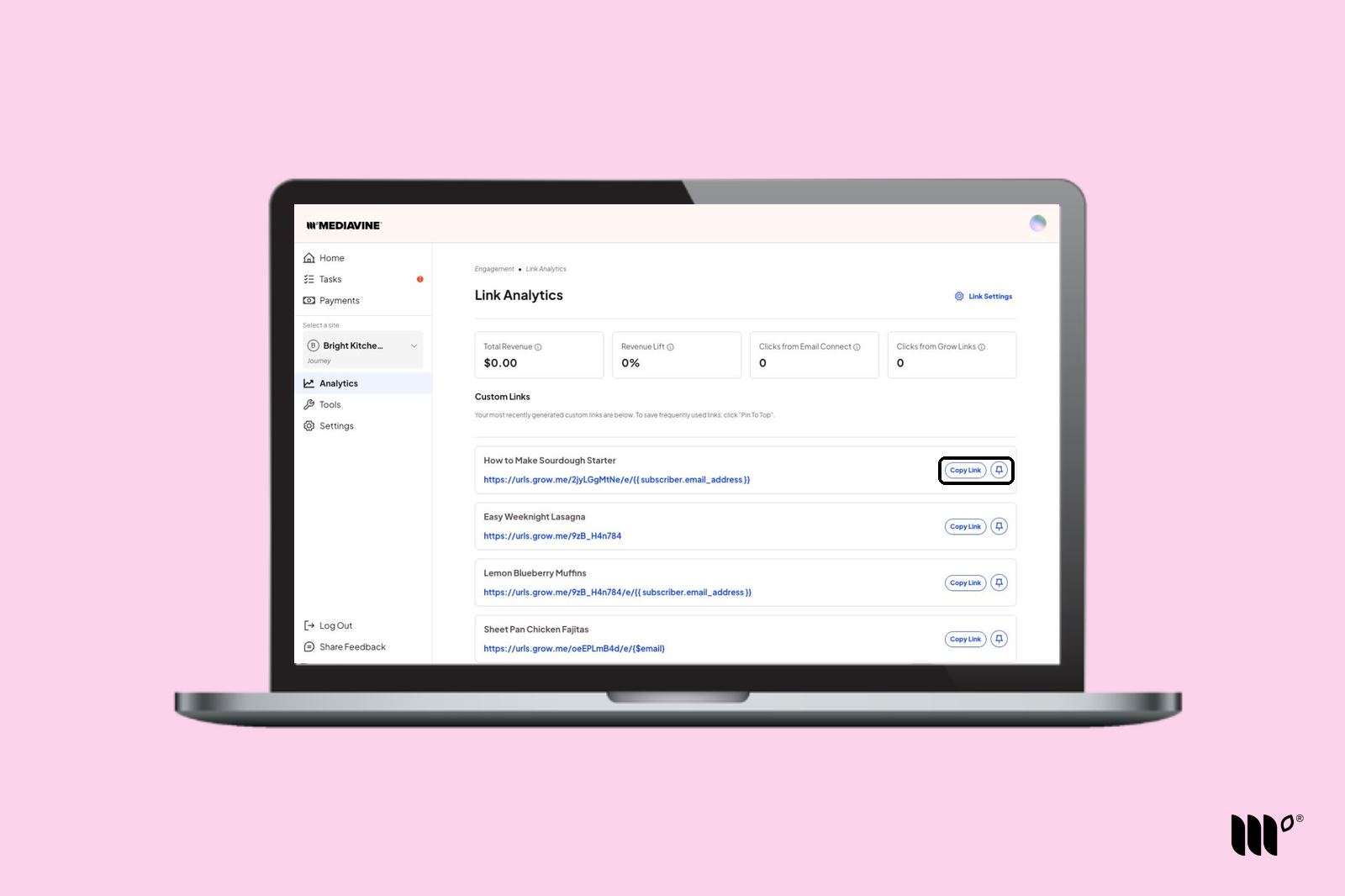
Click Copy Link to grab any recent link again. If you use the same link often, click Pin To Top to keep it, even as more links are generated.
Using the Links Toolkit in Save & Share
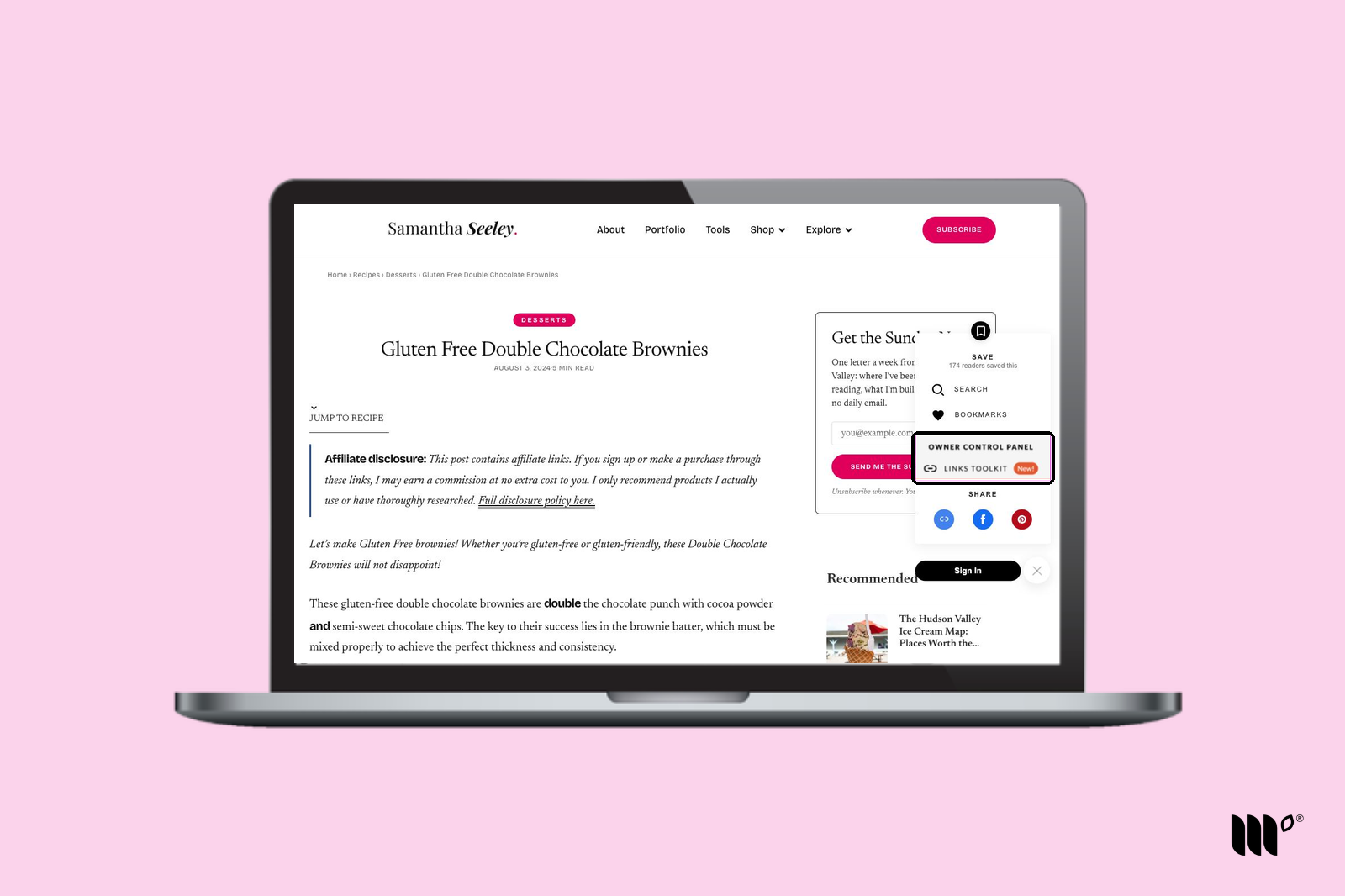
When you're signed in, Save & Share on your site includes an Owner Control Panel for your site's team, with the Links Toolkit inside. It's a quick way to build an Email Connect link for the post you're on.
Step 1: Open the Save & Share menu on the post and click Links Toolkit.
Step 2: Choose your Email Service Provider. You can also add UTM tracking parameters (optional).
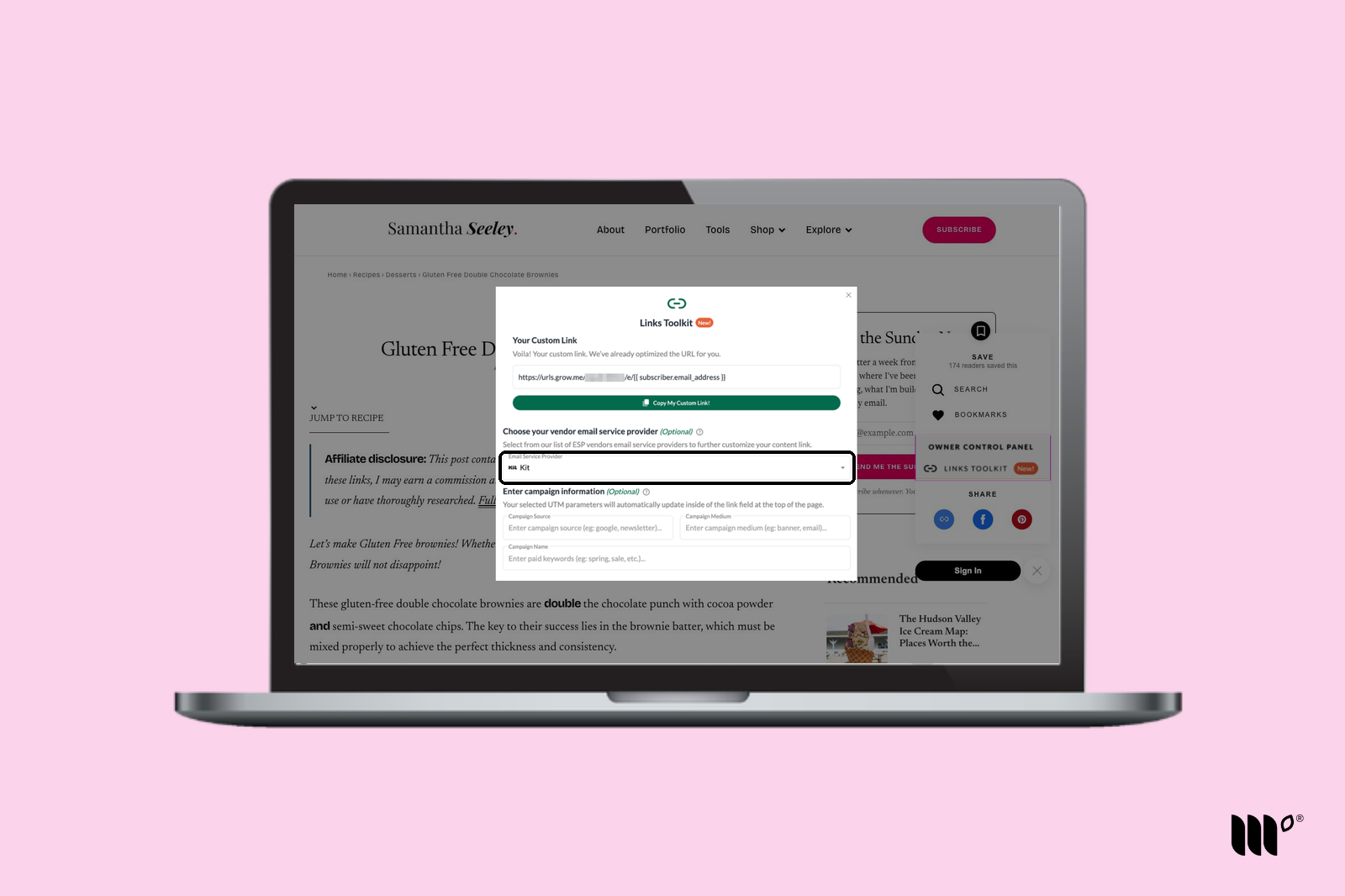
Step 3: Click Copy My Custom Link! and paste the link into your newsletter.
Anyone with access to your site in the Publisher Dashboard can use the Links Toolkit.
Frequently Asked Questions
When should I choose my Email Service Provider, and when should I skip it?
Choose it for links going into your newsletter, so the email tag is added. For links you're sharing anywhere else, like social media, skip it. The email tag only works in emails.
Why isn't my Email Service Provider an option in the Links Toolkit?
We've only added Email Service Providers we've tested and verified with Email Connect. You can still build Email Connect links by hand, or let us know which one you'd like by clicking Share Feedback in the Publisher Dashboard sidebar.
Where do I put custom links?
Use them in place of the URL you'd normally copy from the address bar. Add them to your email draft the same way you'd add any link.