-spacing.png?width=385&height=100&name=mediavine-horiz-white-pn-RGB-(r)-spacing.png)
Before you begin
Before making changes to your payment profile, please keep the following in mind:
- You must be logged in as the account owner to update payment information.
- Changes to payment details may not take effect until the next payment cycle.
- If a payment is already processing, any updated payment information will apply to the next scheduled payment.
Step 1: Log into the Mediavine dashboard
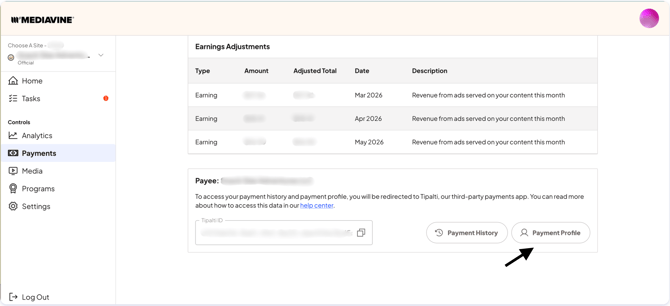
Log into your Mediavine dashboard and click Payments in the left-hand navigation. Then click Payment Profile. Your Tipalti payment profile will open in a pop-up window.
Step 2: Click Next to begin
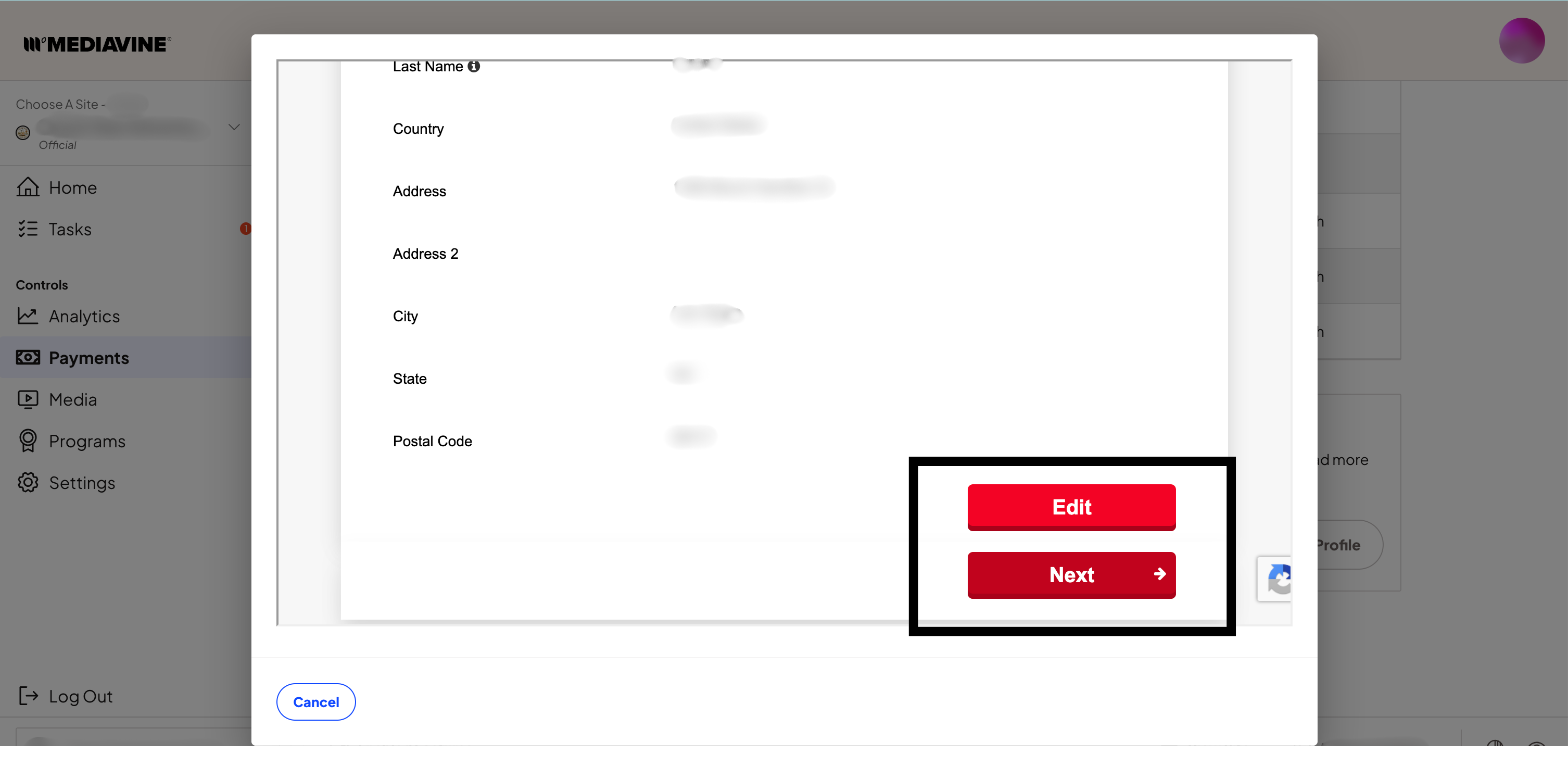
Once your payment profile opens, scroll to the bottom of the page and click Next. This will walk you through each section of your payment profile so you can review or update your details.
Step 3: Edit your payment method
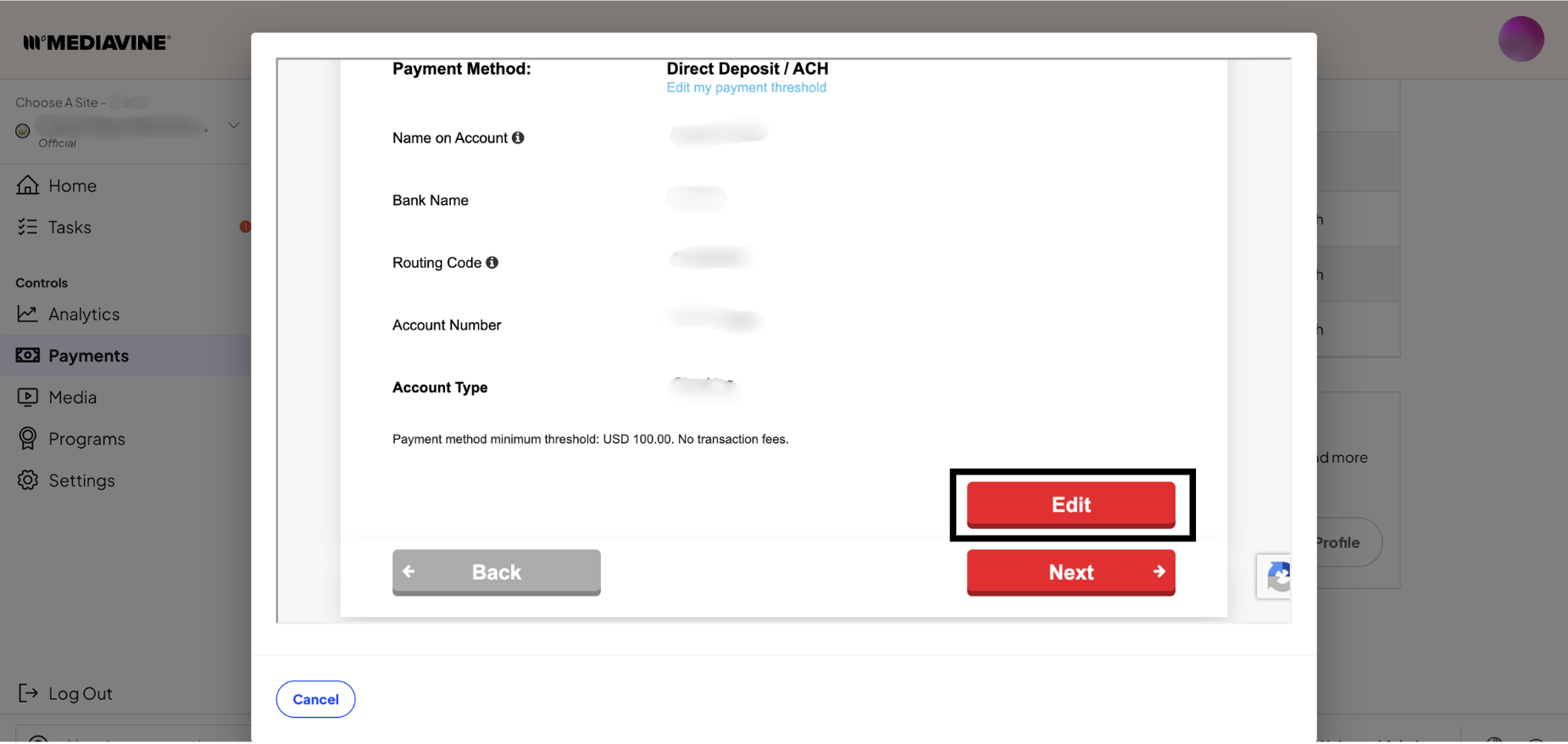
After clicking Next, you'll see your current payment method details, including the name on the account, bank name, routing code, account number, account type, payment threshold, and any listed transaction fees.
To make changes, click Edit.
⚠️ Important: Make sure any banking information you enter matches your bank records exactly. Incorrect or incomplete details may cause a payment to fail or be delayed.
Step 4: Review your tax form information
Continue clicking Next until you reach the Tax Forms section. Here you can view the tax form currently on file. If you need to submit a new form, click the link on that page and follow the prompts.
Step 5: Continue to Done
Once you've reviewed your information and made any needed changes, keep clicking Next until you reach the Done screen. This confirms that payments will be issued based on the selections currently saved in your profile.
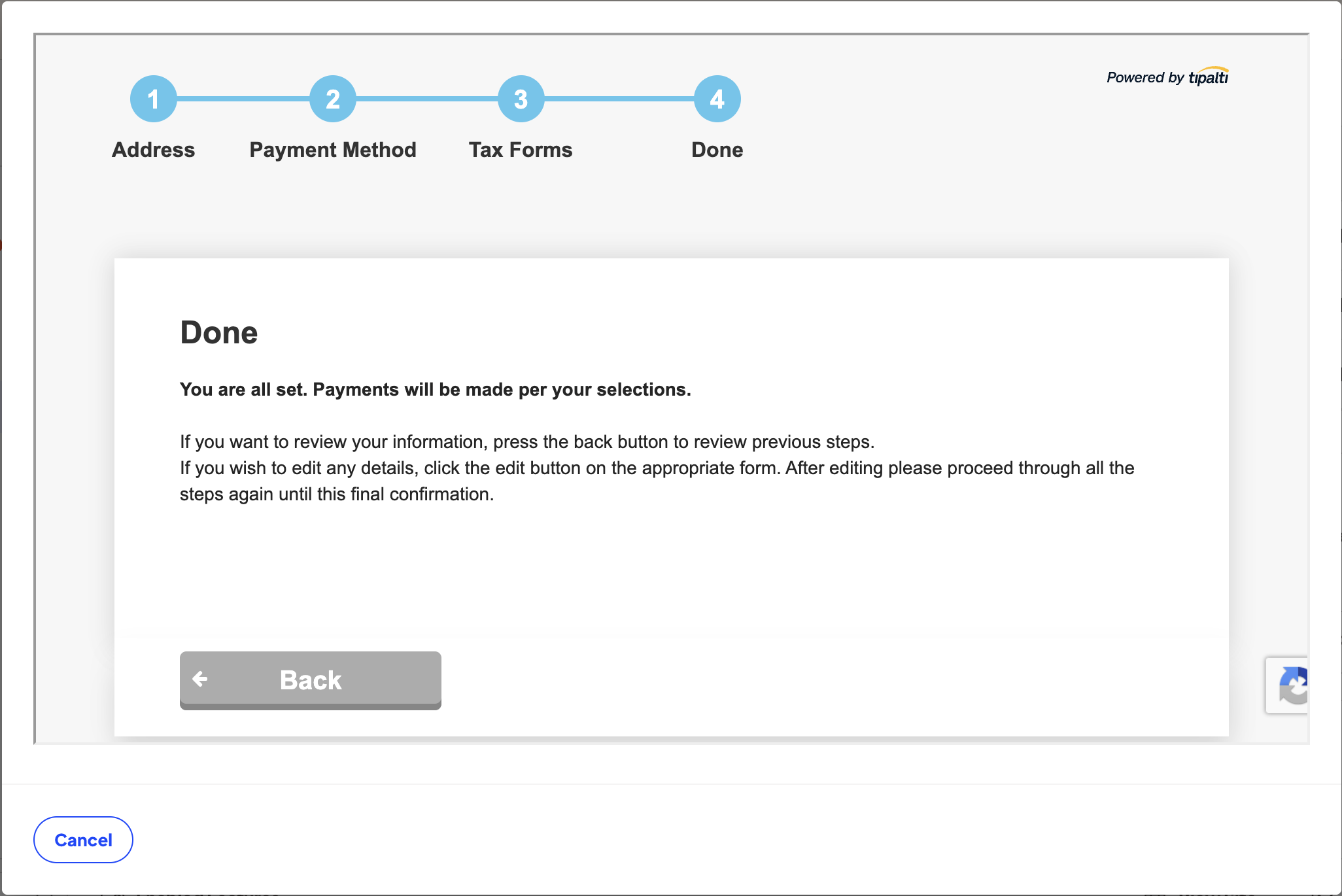
If you need to review anything, click Back just make sure you continue all the way through to the Done screen before closing.
A few things to keep in mind:
- Some changes may require additional verification before payments can be issued to an updated method.
- Changes made close to a payment date may affect when your payment is processed.
- For security reasons, Mediavine cannot manually update sensitive payment details on your behalf. Certain changes must be completed directly within your Tipalti payment profile.