
Pop Up Subscribe is a classic pop-up Subscribe Form, built to be Google-friendly.
What Makes It Google-Friendly?
Readers who come to your site from a Google search on a mobile device won't see your Popup form. They'll see your Spotlight form instead.
When Does It Show?
You choose what triggers your Popup form, separately for mobile and desktop:
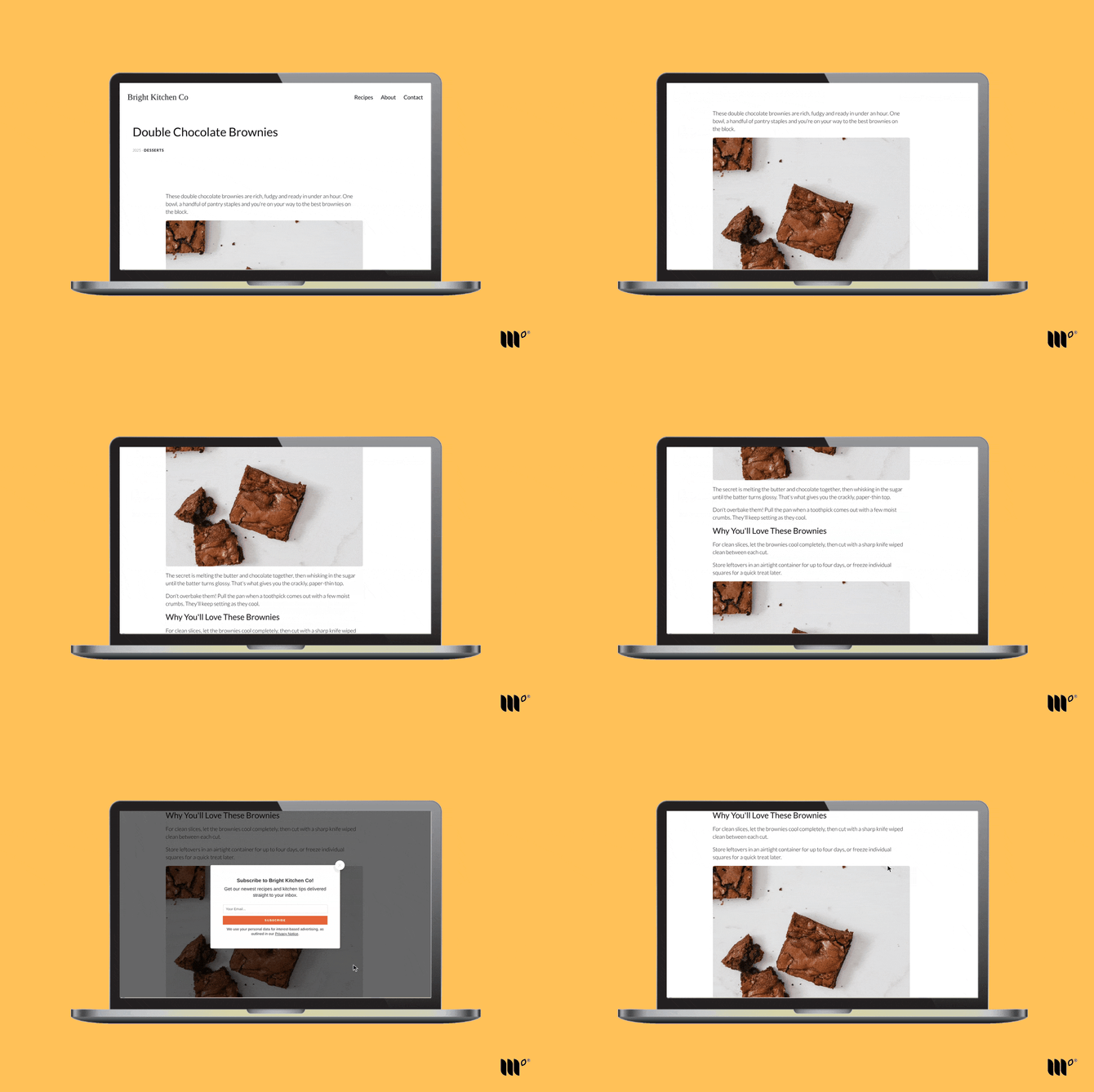
- On Scroll (default): appears when the reader scrolls about 25% of the way into your content.
- Exit Intent: appears when the reader looks like they're about to leave.
- Do Not Show: hides the form on that device type. You can't choose this for both mobile and desktop.
What counts as exit intent?
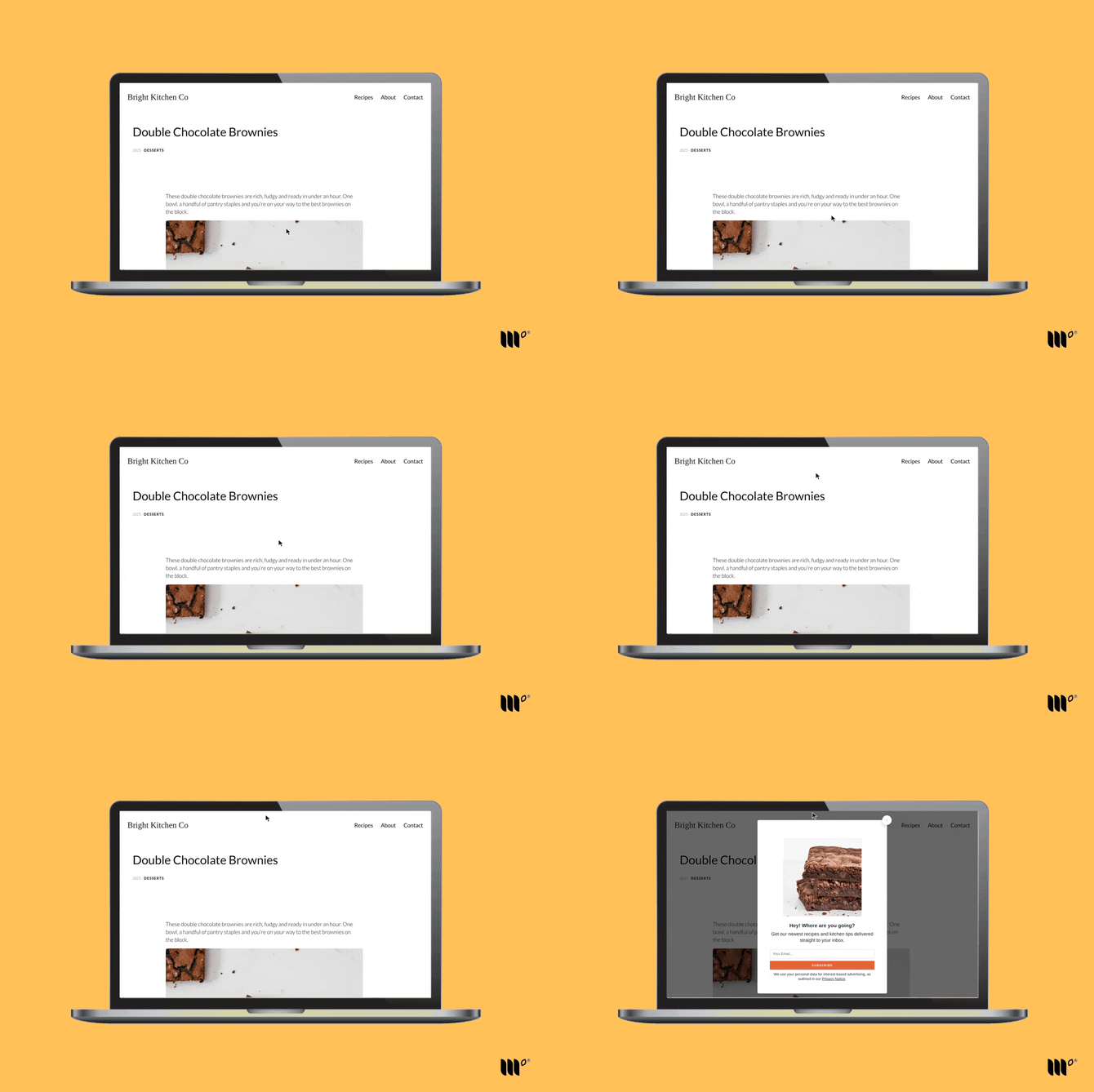
- On desktop: the reader moves their mouse toward the back button, the close button or a new tab, or switches to another app or window.
- On mobile: the reader scrolls up quickly, taps the address bar or switches tabs.
Readers who've already subscribed to a Popup form won't see it again.
How to Set Up Pop Up Subscribe
Step 1: Create a Subscribe Form and choose Popup. Choose your Mobile Form Size:
- Small: floats in the center of the screen
- Large: fills the screen
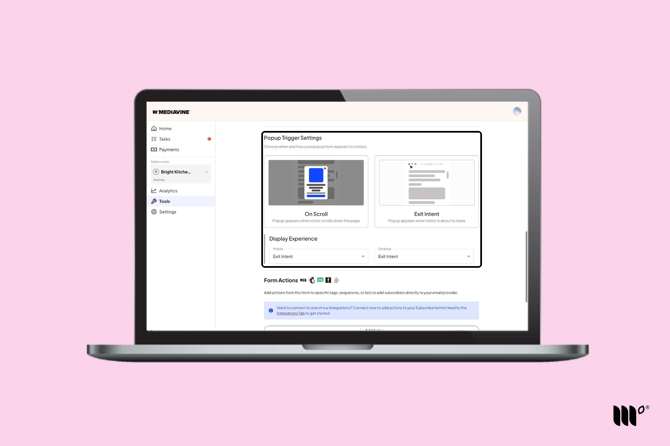
Step 2: Under Popup Trigger Settings, choose On Scroll or Exit Intent, and set the Display Experience for Mobile and Desktop. They don't have to match.
Step 3: Click Save Changes.
Step 4: Go to Subscribe Forms > Settings and choose your form as your Default Pop Up Form, or use Category Targeting to show it only on certain categories.
Exit Intent works with Category Targeting too.