
Print Pass locks the print button in your recipe or how-to card behind a Subscribe form. It works with Create, WP Recipe Maker, and Tasty recipe and how-to cards.
Easily turn engaged readers into subscribers with Print Pass!
When Print Pass is on, clicking the Print button in your recipe card opens a form asking readers to enter their email address and consent to receiving emails and personalized ads. The screen darkens around the Print Pass form, just like a Spotlight Subscribe form.
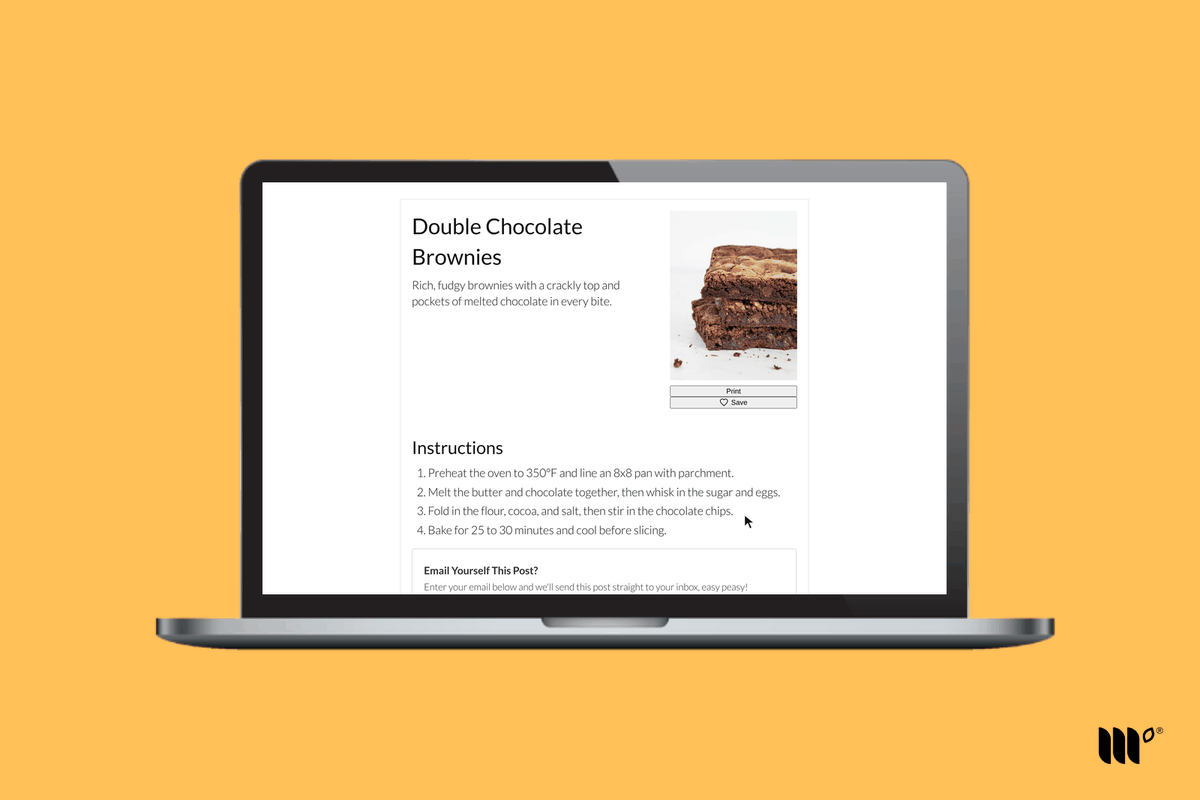
Once the reader clicks Submit and subscribes, the print page appears as usual so they can print your recipe!
See a live example of Print Pass
How do I turn on Print Pass?
In your Publisher Dashboard, go to Tools > Print Pass and toggle on Print Pass.
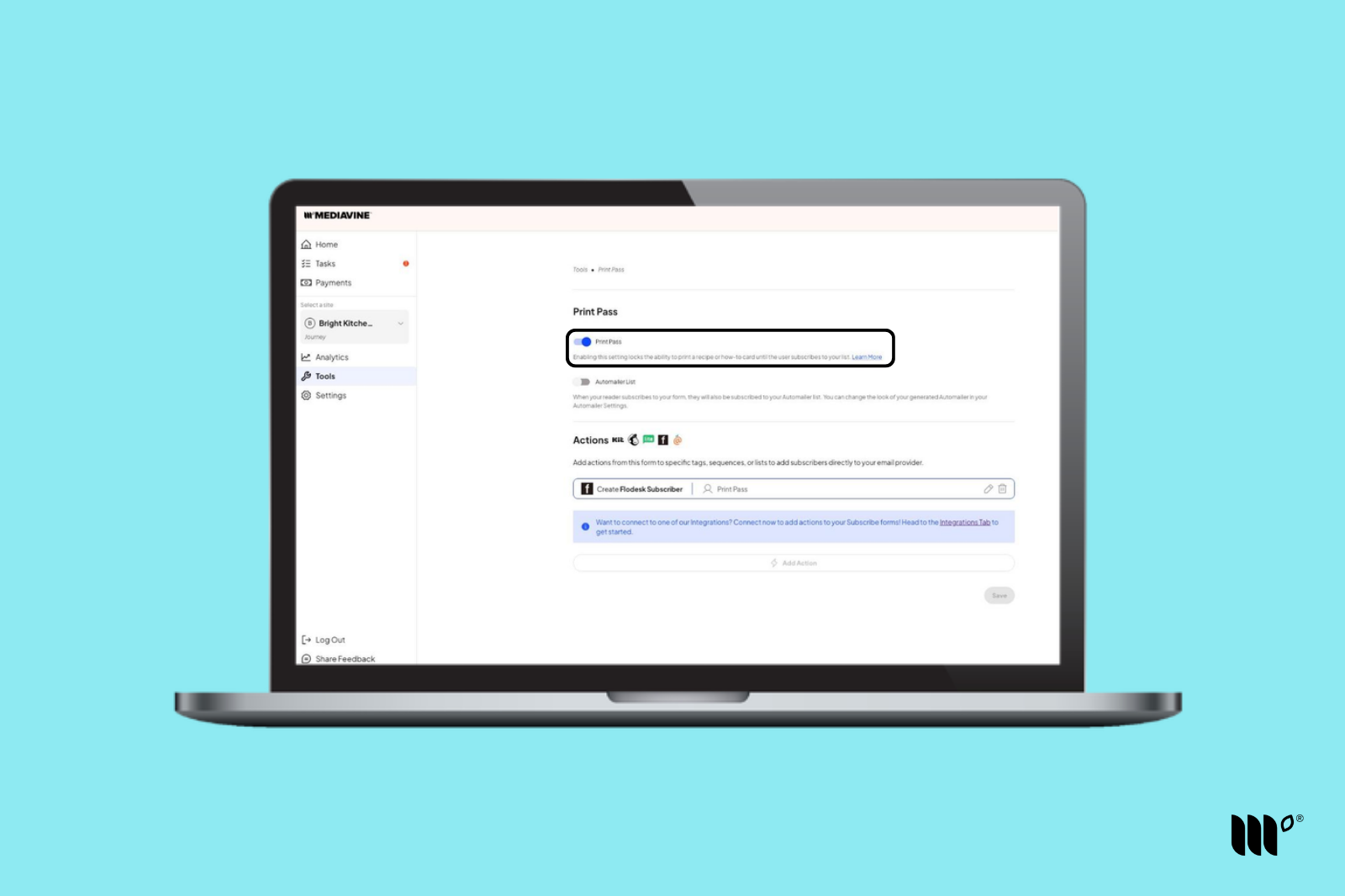
Print Pass & Automailer/Email Service Providers
Once Print Pass is on, toggle on Automailer List so subscribers from Print Pass receive Automailer emails.
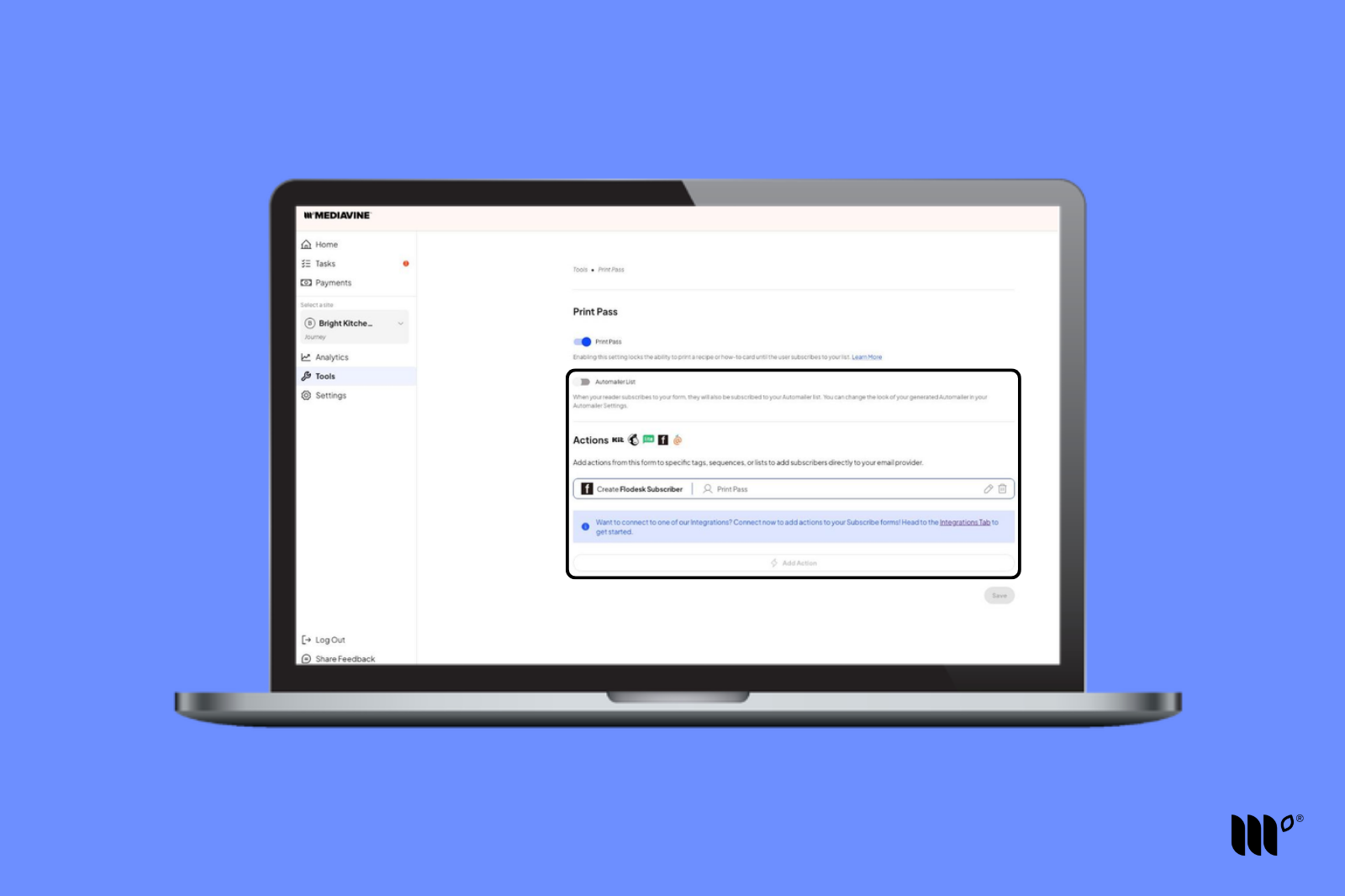
You can also add Actions to send Print Pass subscribers to your third-party Email Service Provider:
- Flodesk
- Kit
- Gro
- Mailchimp
- MailerLite
- Zapier
Don't forget to click Save before you leave the page.
How do I know if a subscriber signed up through Print Pass?
When you download your subscribers from Tools > Subscribe Forms > Settings > Export Subscribers, readers who subscribed through Print Pass show lockedPrintDialog as the source.