
A Search selector will only be needed if site search integration is not working when that setting is enabled.
What is a Search Selector?
A search selector is how Search finds your site's search box.
Once the correct search selector is updated in the settings, if a user clicks into the search box, they'll be directed right to the Search interface to search the site.

Do I need a Search Selector for Site Search Integration to work?
Not necessarily! A few common search selectors are already built into Tools, so there's a good chance it might work without needing to add one into the settings.
How To Find the Search Selector
Step 1: Go to one of your posts and inspect your site's search element using your browser's built-in HTML inspector tool. (We'll use Chrome's DevTools for this example.)
Step 2: Start by finding the search element (can be a search bar or search button) in your post's HTML source code and notice any unique element classes or IDs that we can use as a selector.
You'll want to choose the specific search element where you'd like to see the Site Search Integration triggered as soon as your reader clicks on it.
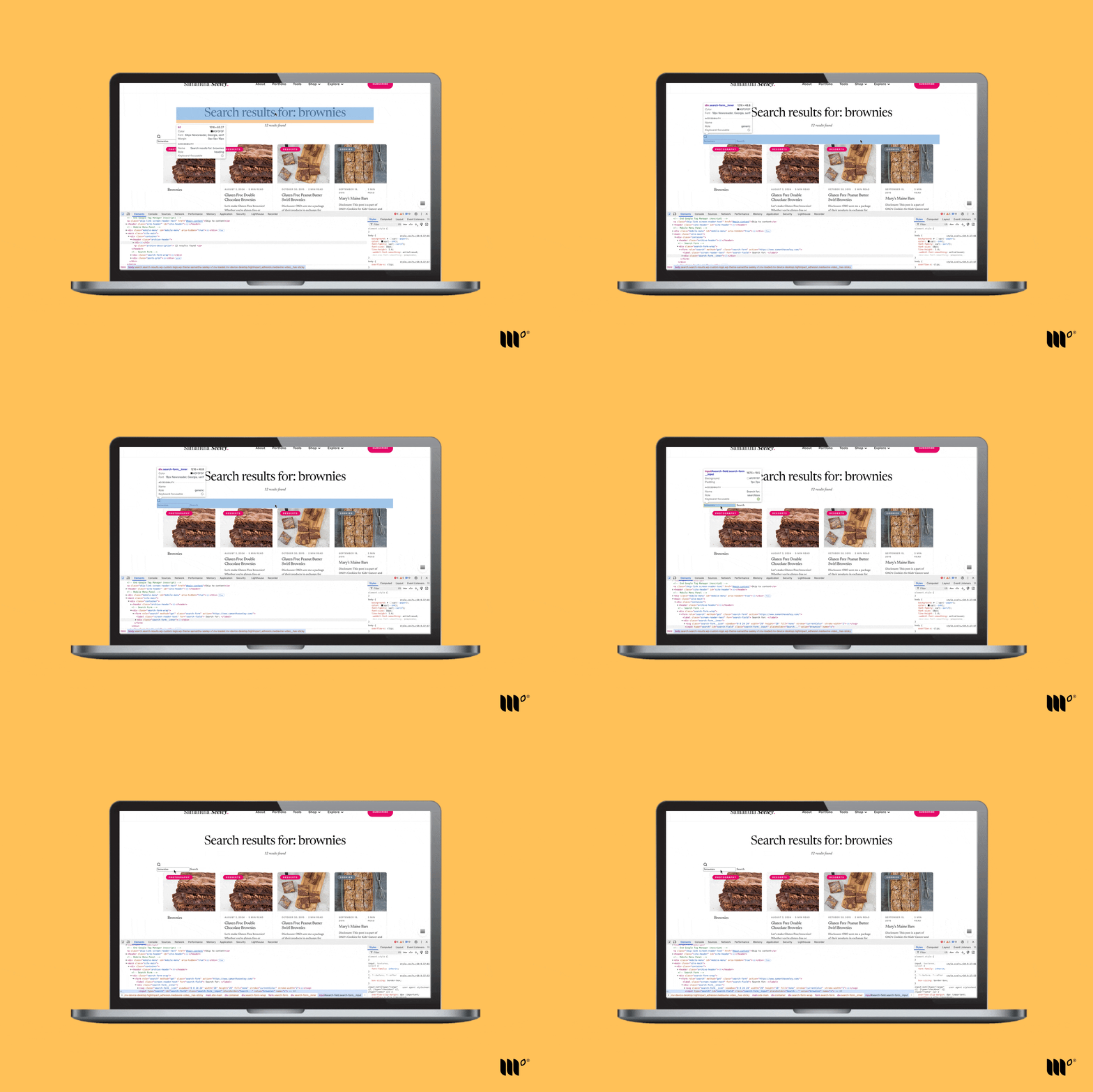
Try to choose the core element itself and not any outlying containers, widgets, etc. that may hold the element, like below:
Example 1: Here is a search bar element with a unique ID selector we can use:
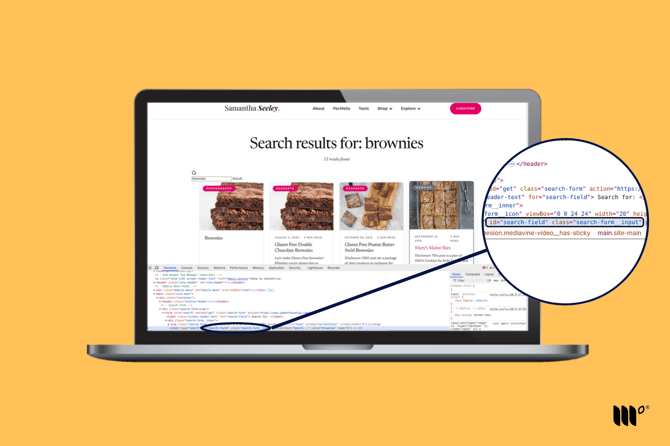
Using the ID selector of #search-field will help trigger the Site Search Integration as soon as the reader clicks on that search bar.
Example 2: Here is a search button element with a unique class we can use below:
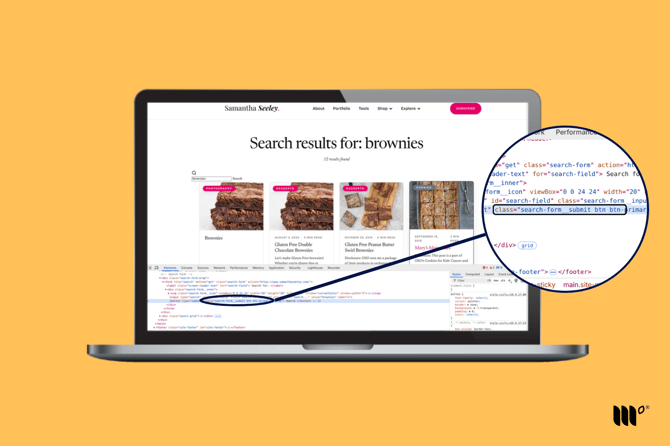
Using the class selector of .search-form__submit will help trigger the Site Search Integration as the reader clicks on the search button above.
Step 3: In your Publisher Dashboard, go to Tools > Search (publishers.mediavine.com/tools). Under Search Selectors, click Add New, enter your selector, and click Save.
Important Note: You want the selector to be unique to your search element to avoid any issues, as that will allow for more accurate targeting. We've seen that
<form>,<button>and<input>elements work great here and usually have easy selectors you can work with.If your Site Search Integration isn't quite working and you suspect it's due to a selector issue, refer to this article for ways to work around that - such as adding in a custom class selector.