-spacing.png?width=385&height=100&name=mediavine-horiz-white-pn-RGB-(r)-spacing.png)
Getting set up to receive payments from Mediavine is quick and easy!
1. Log in to the Mediavine dashboard.
If you are just launching with Mediavine, your homepage will contain a task specific to setting up your payment profile.
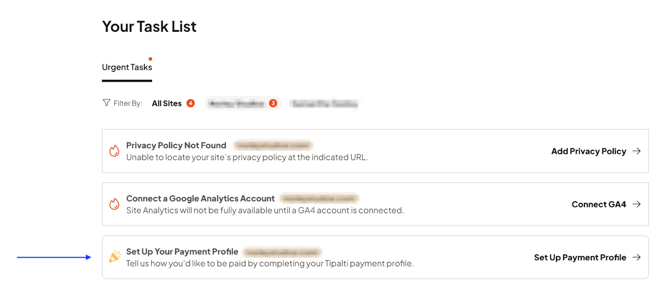
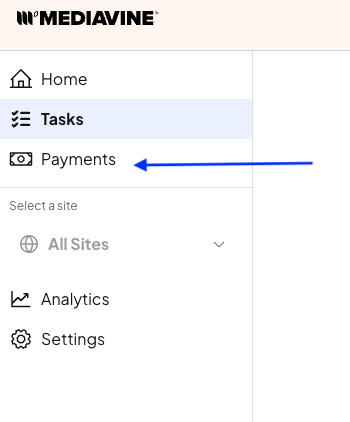
If you have already completed the setup process and would like to access or update previous settings, you can simply click the Payments tab on the left-hand side of your dashboard.
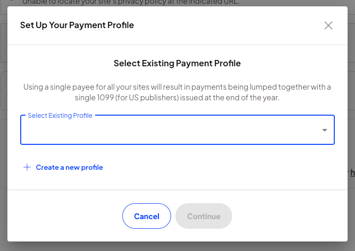
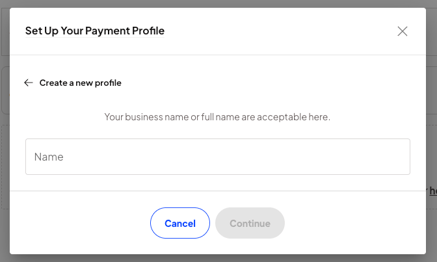
2. Create a new payment profile or select an existing one.
Choose from adding your site to an existing profile or creating a new account. Sites using the same Payment Profile will combine monthly earnings from sites into a single payment.
3. Add your payment details

-
Individual or Company — Choose the option that matches how your taxes will be filed.
-
Email address — For security reasons, it is important to keep this information up-to-date.
-
Contact Information
4. Select your Payment Method
The following payment options are available:
-
PayPal
-
Domestic ACH (aka Direct Deposit)
-
International ACH (aka eCheck)
-
U.S. wire transfer
-
International wire transfer
Need help choosing a payment method? Click here.
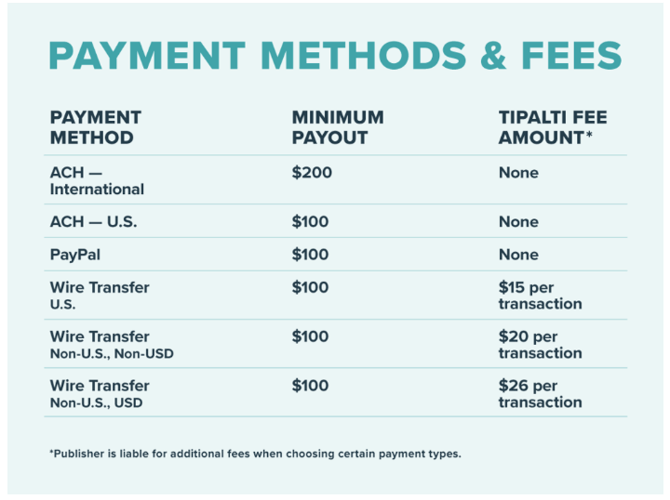
See the chart below for an explanation of minimum payouts and fees:
5. Select your tax form.
Next, you will be prompted to fill out a tax form based on your country of residency. You can toggle between the U.S. Person and Non-U.S. Person tabs.
If you need help with the forms, please consult with a qualified tax advisor or attorney to receive advice for your particular needs.
United States
If you are a U.S. person (see definitions on the IRS site) select the "U.S. Person" tab to electronically submit the W-9 form.

NOTE: Street number is the house number, and Street is the name of the street. For example, if your address is 123 Main Street, 123 would be the street number and Main Street would be the street. (We are aware of a bug that puts the street number after the street name if you edit your W9. Don’t worry — your information IS stored correctly.)
Non-U.S.
If you are not a U.S. Person (see definitions on the IRS site), select the Non-U.S. Person tab. You will fill out a form certifying that you do not conduct business activities in the United States.

6. Click Next
You’re done! Thanks so much for setting up your payment information.
Once you have received a payment through Tipalti, your payment history will appear here:

If you have any questions about the Tipalti payment profile, please email payments@mediavine.com.