
How to Update Your Mediavine Password
Change your password or reset a forgotten one.
You can update your Mediavine Dashboard password in two ways, depending on whether you remember your current one.
If you forgot your password
- Go to publishers.mediavine.com/home.
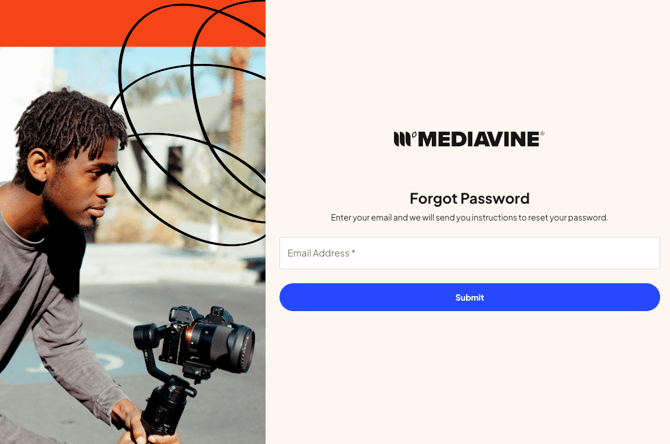
- Click Forgot Password, enter your email address and click Submit.
- Check your email for a reset link, then follow it to create a new password.
If you know your current password
- Sign in to your dashboard and click your profile image in the top-right corner.
- On the User Profile page, scroll to the bottom to find the option to change your password, then enter your current password.
- Enter a new password that meets the guidelines shown, and click Save New Password before you leave the page
After you change your password
You’re signed out of every device and browser, and you’ll need to sign back in with your new password. This way, anyone who had your old password or was signed in to your account loses access.
Tip: Choose a password you don’t use anywhere else. If you think someone else has access to your account, change your password right away and contact our Client Experience team at publishers@mediavine.com.