-spacing.png?width=385&height=100&name=mediavine-horiz-white-pn-RGB-(r)-spacing.png)
If you have video content, the Mediavine Video Player is one of the fastest ways to make your content more useful and will add to your overall ad revenue.
Uploading a new video to Mediavine is quick and easy.
STEP 1. UPLOAD YOUR VIDEO.
10-minute max length. 3GB max file size. Supported formats include mp4, webm, flv, mov, ogv, 3gp, 3g2, wmv, mpeg, flv, or avi.
STEP 2. ADD DETAILS.
Enter a video title, description, keywords, etc. You can see this guide, "How to Fill Out Video Details to Improve SEO and RPM."
STEP 3. SAVE THE VIDEO! Always remember to save your changes.
-
Quick Note: If you are uploading videos for use with Universal Video Player+, you do not need to complete Step 4.
STEP 4. EMBED THE VIDEO!
If you want to add the video to a specific post, the last step is to embed that video. Detailed instructions are listed below.
IMPORTANT NOTE: If you have a recipe or how-to card, embed the video directly in the card.
Video specs:
File types: Any video file type (e.g., .mp4, .mov, etc.)
Resolution: 720p (anything higher will be downsized)
File size: 3 GB or smaller
The videos you upload must belong to you, or you must have permission from the copyright owner to run the file.
-
Video uploads will be resized to 720p.
Keep your high-resolution copies! While the file is uploading and transcoding, you will see a progress bar. Once completed, a thumbnail of your video will appear.
Uploading Video Step-by-Step Details
To view these steps using the legacy dashboard, click here.
1) Upload your video.
-
Log in to your Mediavine dashboard. If you have multiple sites, make sure you select the site the video is associated with.
-
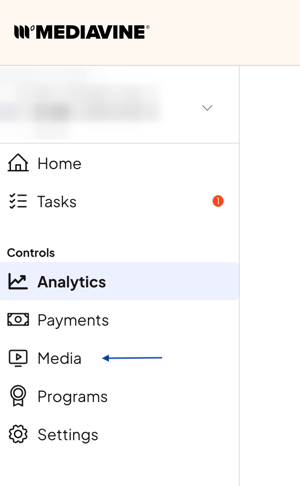
Choose Media from the navigation menu.
-
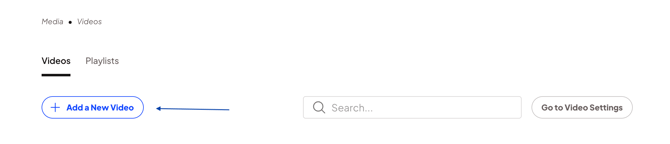
Select Add New Video.
-
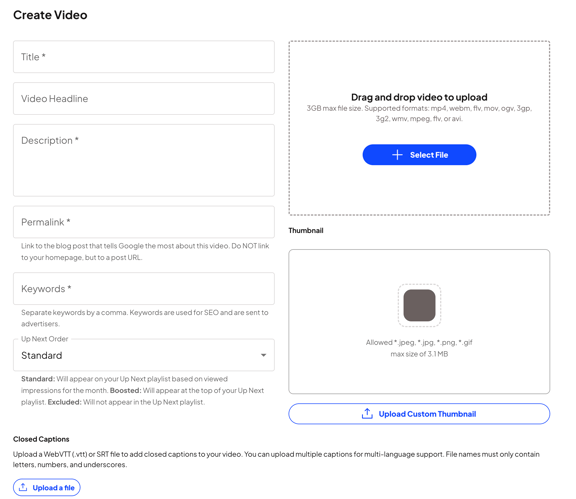
To upload the file, click +Select File.
2) Add details.
-
Title. What you write here is key to finding your video later and will be shown to advertisers. Please be descriptive and use relevant keywords.
- Video Headline. This will appear just above the Video on the page or post. This headline is not included above the video player for UVP+.
-
Description. This is also shown to advertisers. Best practice is to include your title in this description, as well as extra keywords to help advertisers understand the content. 1-2 sentences are all you need.
-
Permalink. Make sure to use the URL of the post where you will be embedding your video! The permalink is picked up by advertisers and is key in getting spend from Google's AdExchange.
-
Keywords. These are also seen by advertisers and can support SEO. Use words that best summarize the topics of your video. You can also use our tips on Keyword Research!
-
Up Next Order. Select whether this video should appear at the top of your Up Next playlist (Boosted), in standard order based on viewed impressions for the month (Standard), or whether it should be excluded entirely from the Up Next playlist (Excluded).
-
Save. Don't forget to save!
3) Adjust the Settings.
After clicking save, you can edit your video's settings, preview it, and grab the embed code for your blog post.
-
Upload a Custom Thumbnail. If you'd like, you can override the thumbnail for the video. Please make sure you upload a thumbnail with an aspect ratio identical to that of your video, or the player will automatically crop it.
-
Time Stamps. This is similar to features you can find on YouTube. With time stamps and Clips, you are eligible for Google's Key Moments results!
-
Closed Captions. To meet the accessibility needs of your readers, you have the option to add Closed Captioning to your videos.
-
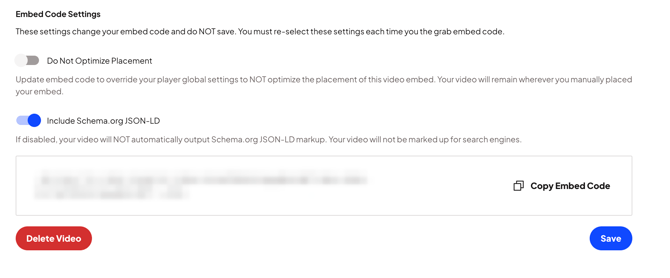
Do Not Optimize Placement. This toggle will default to off and is intended to help with video placement within a post. If you would prefer to control the placement of your video, you can do so by enabling this toggle and adding the embed code where you would like the video to be placed in the post.
It's also important to note that under video settings, there is a global setting for this feature. Learn more here.
4) Embed your video.
This step is not necessary for the use of Universal Video Player+ (UVP+)
After you've adjusted all your settings, it's time to embed!
-
Select Copy Embed code.
Best practice for SEO: If you have a recipe or how-to card, it's important to embed it in the card.
WordPress Classic Editor
Paste the HTML in the Text Editor of the post. Update / Save the post.

WordPress Gutenberg
If you’re using WordPress with Mediavine's Plugin (Mediavine Control Panel), then you can embed a video using the "Insert Video" button. In this scenario, no Code copy/paste is needed!

Outside of WordPress, you can copy the video code from your Mediavine dashboard and paste it into a Custom HTML block.
Be sure to Save.
Legacy Dashboard:
1) Upload your video.
-
Log in to your Mediavine dashboard. If you have multiple sites, make sure you select the site the video is associated with.
-
Choose Videos from the menu.
-
Click the Add New Video button.
-
To upload the file, click Add a Video.

2) Add details.
-
Title your video. What you write here is key to finding your video later and will be shown to advertisers. Please be descriptive and use relevant keywords.
-
Add a description. This is shown to advertisers, so try and repeat your title in this field and use extra keywords you think will sell advertisers on this video. 1-2 sentences is all you need.
-
Insert the link to the blog post. Make sure to use the URL of the post where you will be embedding your video! The permalink is picked up by advertisers and is key in getting spend from Google's AdExchange.
-
Write your keywords. These are also seen by advertisers and can help with your SEO. Try and think of words that best summarize the topics of your video. You can also use our tips on Keyword Research!
-
Select Up Next Priority setting. Select whether this video should appear at the top of your Up Next playlist (Boosted), in standard order based on viewed impressions for the month (Standard), or whether it should be excluded entirely from the Up Next playlist (Excluded).
-
Click Save Changes!
3) Adjust the Settings.
After clicking save, you can edit your video's settings, preview it and grab the embed code for your blog post.
-
Upload a Custom Thumbnail. If you'd like, you can override the thumbnail for the video; otherwise, we will use the one you see under file. Please make sure you upload a thumbnail with an aspect ratio identical to that of your video, or the player will automatically crop it.

-
Time Stamps. This is a feature that is similar to features you can find on YouTube. With time stamps and Clips, you are eligible for Google's Key Moments results!
-
Closed Captions. To meet the accessibility needs of your readers, you have the option to add Closed Captioning to your videos.
-
Do Not Optimize Placement. This is NOT a recommended setting. It is available because SOMETIMES you really just need to control where the video is placed and you may want to override your global Optimize Placement Settings.
It is important to remember that anything you manually DO, you also have to manually UN-do. Use cases and details on these settings can be found HERE.

4) Embed your video.
This step is not necessary for the use of Universal Video Player+ (UVP+)
After you've adjusted all your settings, it's time to embed!
-
Select Copy Embed code.
Best practice for SEO: If you have a recipe or how-to card, it's important to embed it in the card.
WordPress Classic Editor
Paste the HTML in the Text Editor of the post. Update / Save the post.
WordPress Gutenberg
If you’re using WordPress with Mediavine's Plugin (Mediavine Control Panel), then you can embed a video using the "Insert Video" button. In this scenario, no Code copy/paste is needed!
Outside of WordPress, you can copy the video code from your Mediavine dashboard and paste it into a Custom HTML block.
Be sure to Save.